

Generate an API Key
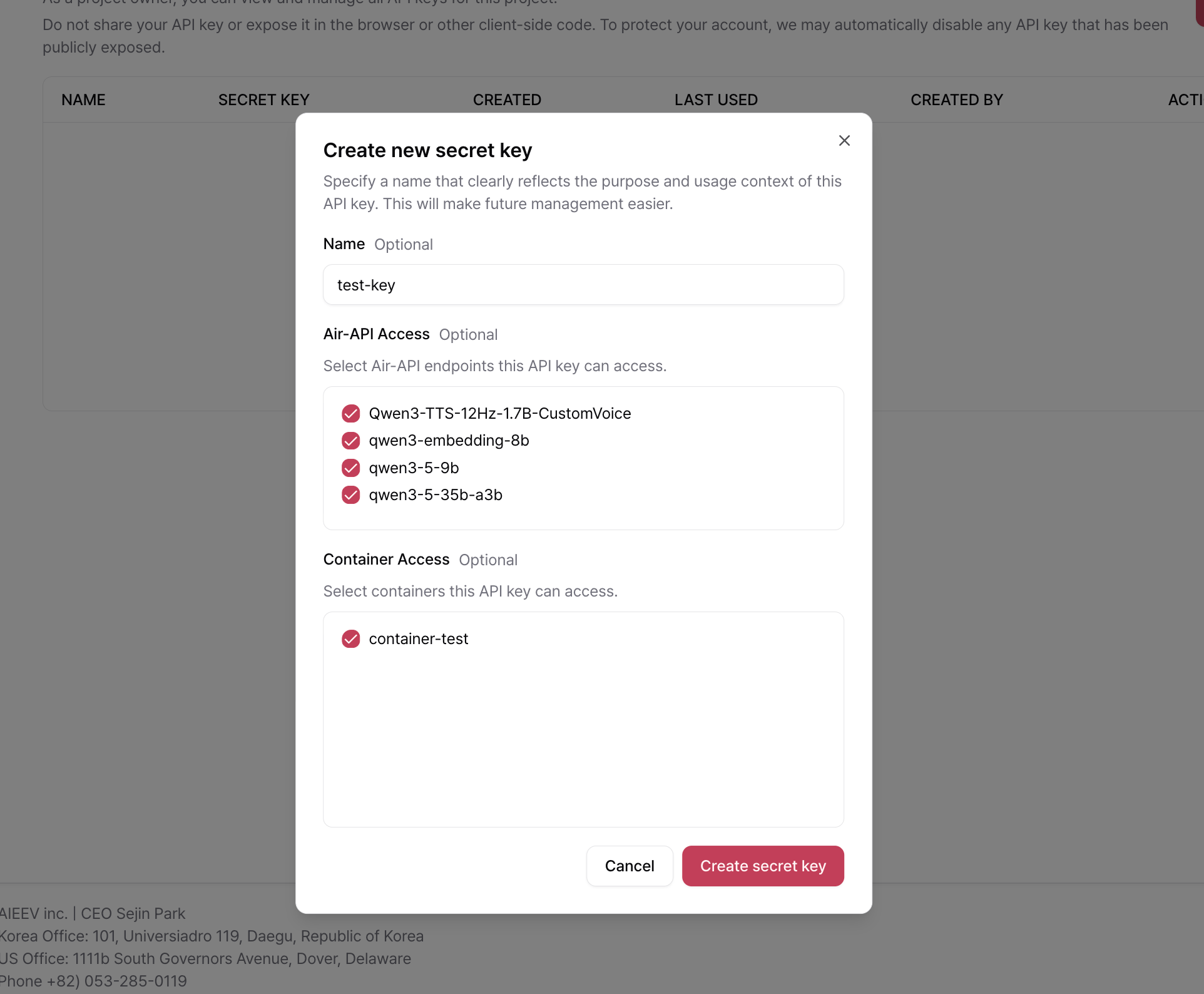
Navigate to the Project where you want to create an API key. In the Console, select API Keys from the left navigation menu, then click Create New Secret Key.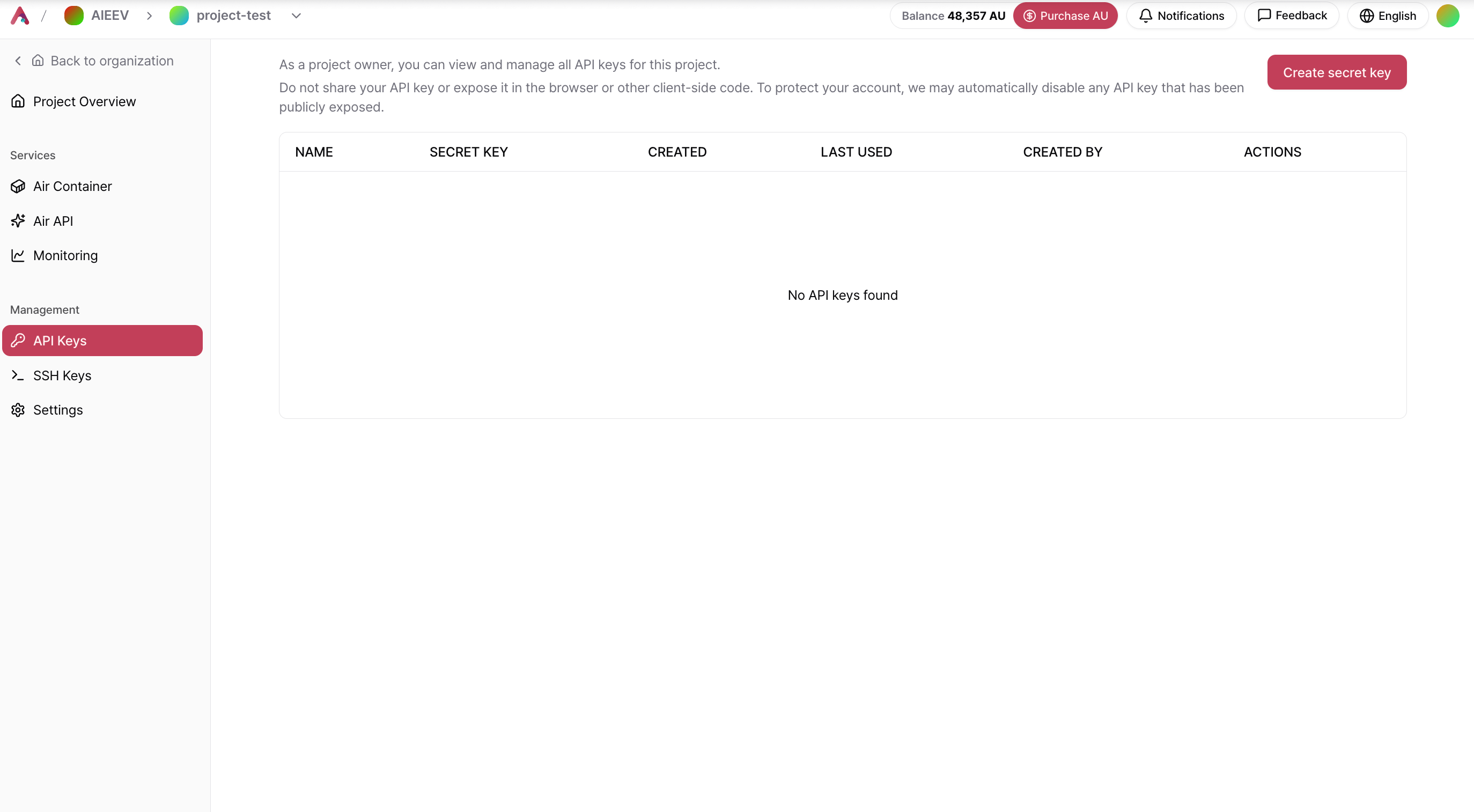
Authentication Header
Include your secret key in theAuthorization header for every API request.
Security Best Practices
Never hardcode your secret key in your source code. If it is committed to a repository, it may be exposed to others. We recommend storing it as an environment variable.If Your Key Is Lost or Compromised
Immediately delete the affected key from the API Keys page in the Console and generate a new one. A compromised key remains valid until it is revoked, so we strongly recommend deleting it as soon as possible.Related Documentation
Making API Requests
Learn how to authenticate and call Air API using your secret key.
Troubleshooting
Learn how to resolve authentication errors and other common issues.