

Official Templates
Official templates provided by AirCloud are available from Select Template during container creation. The picker groups them by what you are trying to do, and you can search by name.
Templates whose image runs
sshd are marked as supporting SSH access, which works alongside Jupyter or VS Code once you register an SSH key for the container.
The list of available templates may change over time. Refer to the container creation page for the latest templates.
My Templates
You can save an existing container configuration as a reusable template, allowing you to quickly deploy the same environment in future deployments.Save a Template
- From the Air Container list, click the ⋮ menu in the upper-right corner of the container card you want to save.
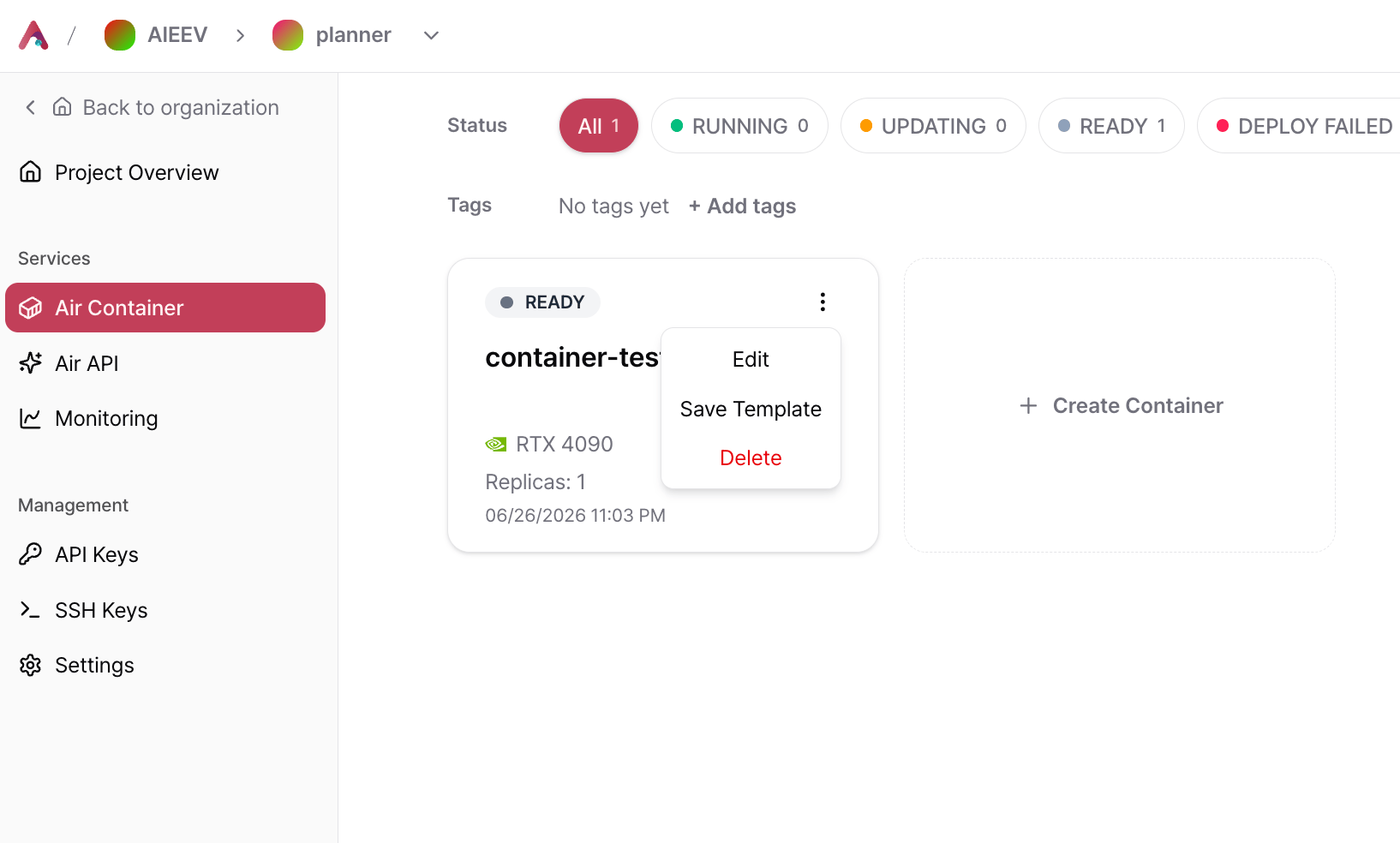
- Select Save as Template.
- Enter the template information and click Save.
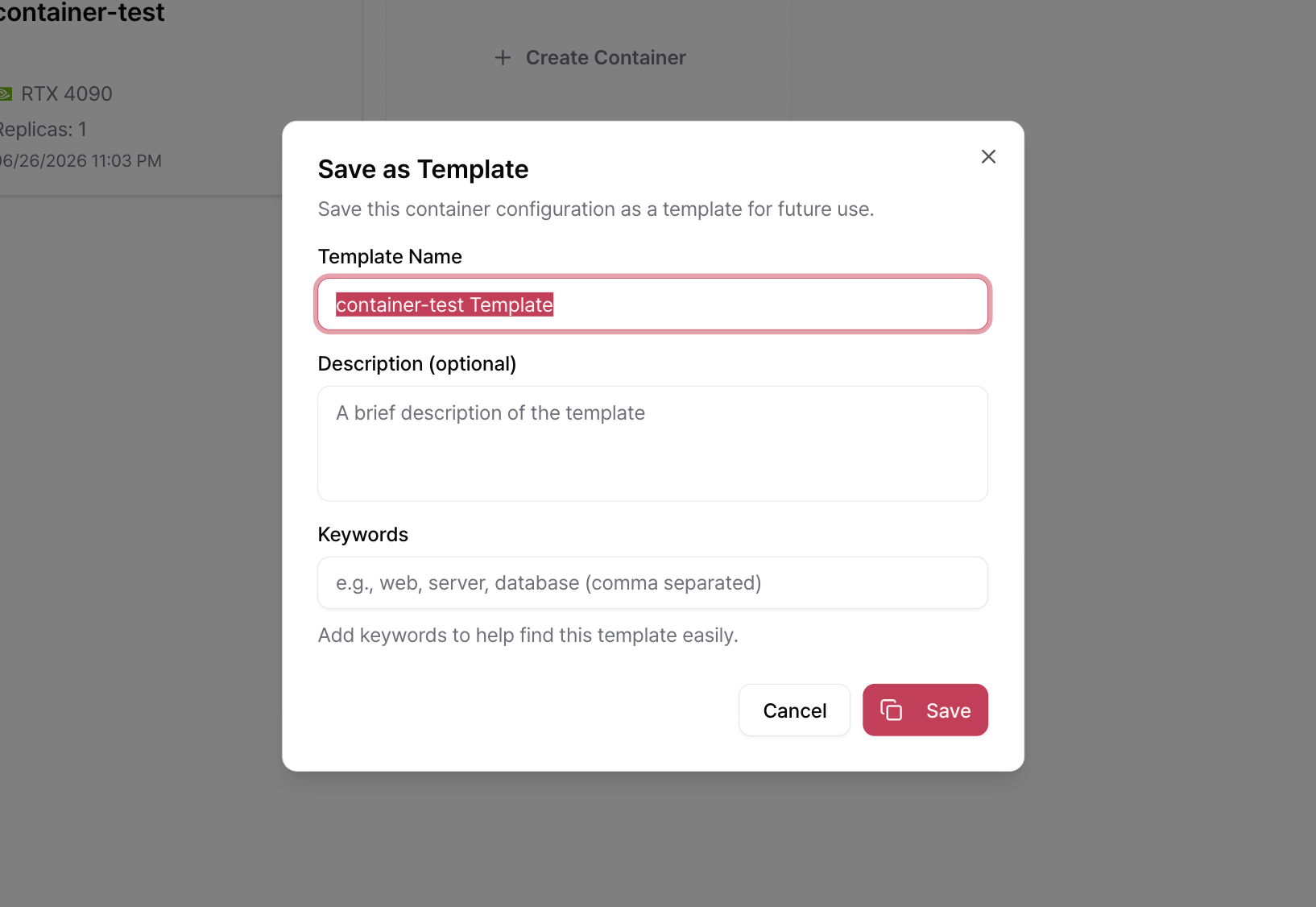
After saving, the template will appear under the My Templates filter during container creation.
Templates are shared with all members who have access to the current Project. Only the person who created a template or a project manager can delete it, and built-in templates cannot be deleted.
Use a Template
Select a template during the image configuration step when deploying a container.- Click Select Template on the container creation page.
- Filter by framework or search by template name.
- Select the desired template and click Save.
- Continue configuring ports, environment variables, resources, and other deployment settings.
Related Documentation
Deploy a Container
Learn the complete deployment workflow after selecting a template.
Access and Connect
Learn how to connect to deployed containers using the Web Terminal, AirCloud CLI, or SSH.