

Air Assistant is a beta feature. It is currently read-only: it does not change resources, such as deploying, stopping, or deleting a container.
Getting Started

- Click the Air Assistant button in the console header.
- The first time, a data handling notice appears. Read it, tick I have read the above and agree to use the Air Assistant beta, and click Agree and continue.
- The Air Assistant panel opens on the right. Pick a suggested question or type your own.
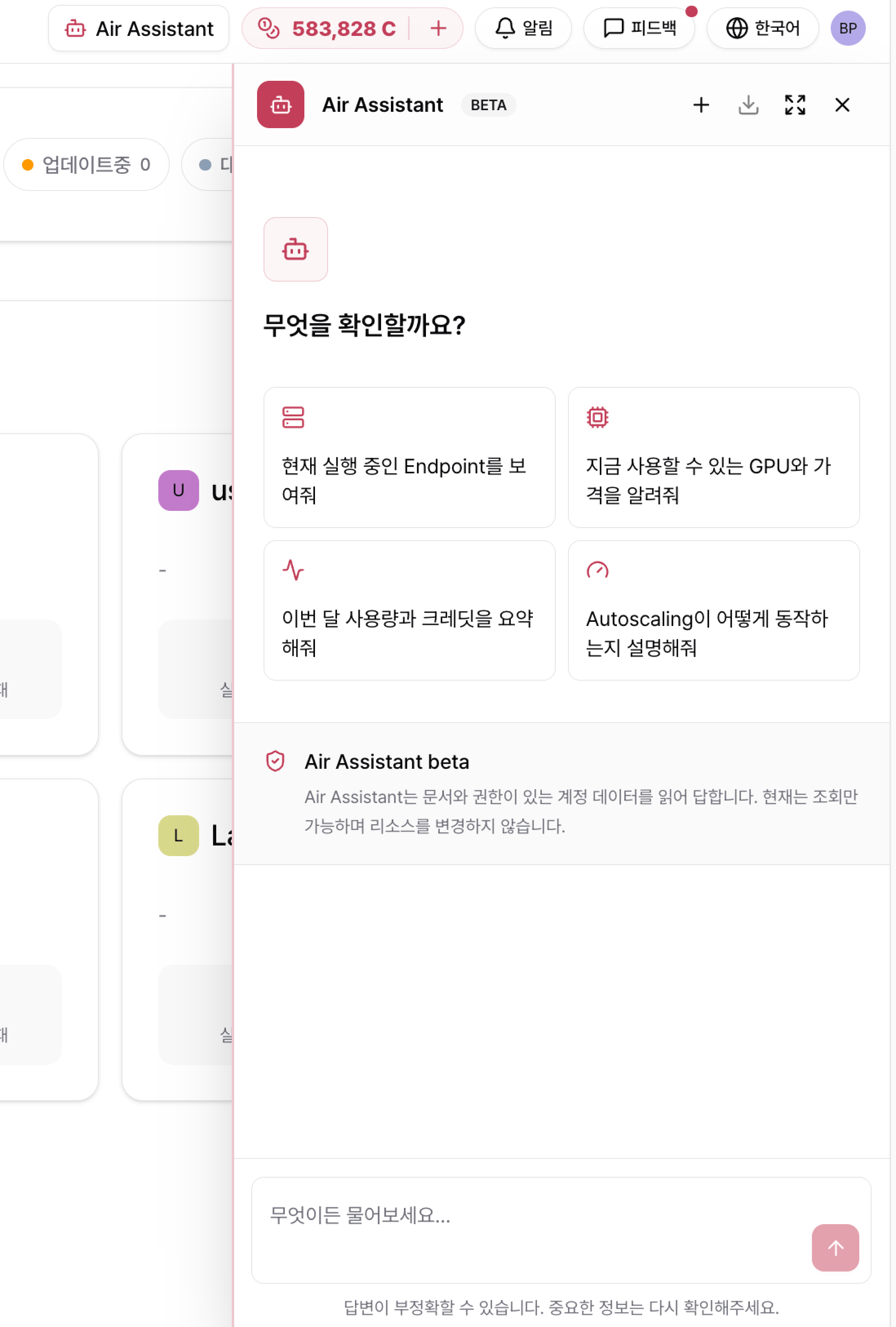
- Show me the endpoints that are currently running
- Which GPUs are available right now, and at what price?
- Summarize this month’s usage and credits
- Explain how Autoscaling works
What It Can Do
Below each answer, related follow-up questions appear as buttons. Clicking one sends that question right away.
List results show 10 items by default and up to 20.
Not Supported Yet
During the beta, the following are not supported:- Creating, editing, stopping, or deleting resources (deploy, restart, change replicas, and so on). The assistant can explain how to do them, but you run them in the console yourself.
- Monitoring metrics, log analysis, and root-cause diagnosis
- Storage and template lookups
- Detailed cost breakdowns by period or resource, and configuration change history
- Connecting from external agents (Claude, Cursor, and others) over MCP
Using the Panel
The beta does not yet reopen past conversations. If you want to keep a conversation, save it with Export (↓).
Data Handling and Permissions
Review the following before using Air Assistant. It is the same information shown on the first-use consent screen.Getting Better Answers
- Be specific about the target. “The endpoints in project bs-proj” works better than “my endpoints”. Include the project or endpoint name.
- Ask one thing at a time. Split several questions into separate messages rather than combining them in one sentence.
- Start a new conversation when the topic changes. Earlier context can affect the answer to a new question.
- If no answer arrives, resend after a moment or ask again in a new conversation.
Related
Autoscaling and Scheduling
Learn what drives replicas up and down.
GPU Availability and Limits
Understand availability indicators, sold-out GPUs, and replica limits.
Billing and Credits
Check credits, payments, and invoices in the console.