

Start, Stop, and Restart
A deployed container can be in one of five states. Billing and data persistence depend on the current container state.Container States
When a container is in DEPLOY FAILED or UNHEALTHY, an Error Details chip appears next to the status. Opening it shows the diagnosed cause and what to do about it — see Troubleshooting.
Hourly charges apply only while the container is in the RUNNING or UPDATING state. Containers in the READY, DEPLOY FAILED, or UNHEALTHY state are not billed.
Stop a Container
Stopping a container changes its state to READY.- Compute resources are released and billing stops.
- Starting the container again launches a new container instance.
Data Persistence
Whether your data is preserved depends on whether Persistent Storage is enabled. For setup instructions, see Persistent Storage.Container Tags
Tags allow you to organize containers into custom groups. As the number of containers grows, tags make it easier to group and filter containers by purpose, project, or model family.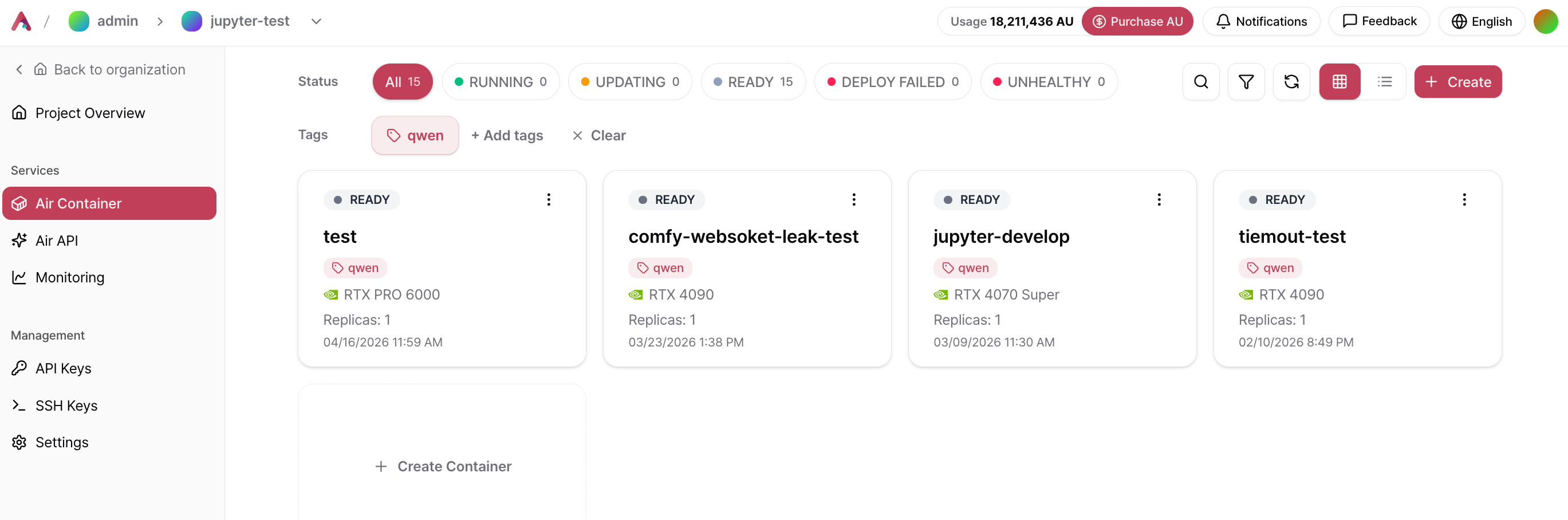
Create and Assign Tags
Click + Add Tag at the top of the container list, create a tag, and select the containers you want to assign it to. A single tag can be assigned to multiple containers.Filter by Tag
Click a tag in the tag list to display only the containers associated with that tag. Click Clear Selection to return to the full container list.Related Documentation
Persistent Storage
Learn how to persist data across container restarts.
Autoscaling and Scheduled Scaling
Learn how to configure Autoscaling and Scheduled Scaling.