

- Deploy from a Template — Quickly deploy using a preconfigured template.
- Create from Scratch — Configure every deployment option manually.
Before You Begin
Regardless of the deployment method, you’ll configure the following settings during deployment.1. Select a Project
From the Organization Overview, open the Project where you want to deploy the container.2. Start Creating a Container
From the Air Container page, click + Create in the upper-right corner.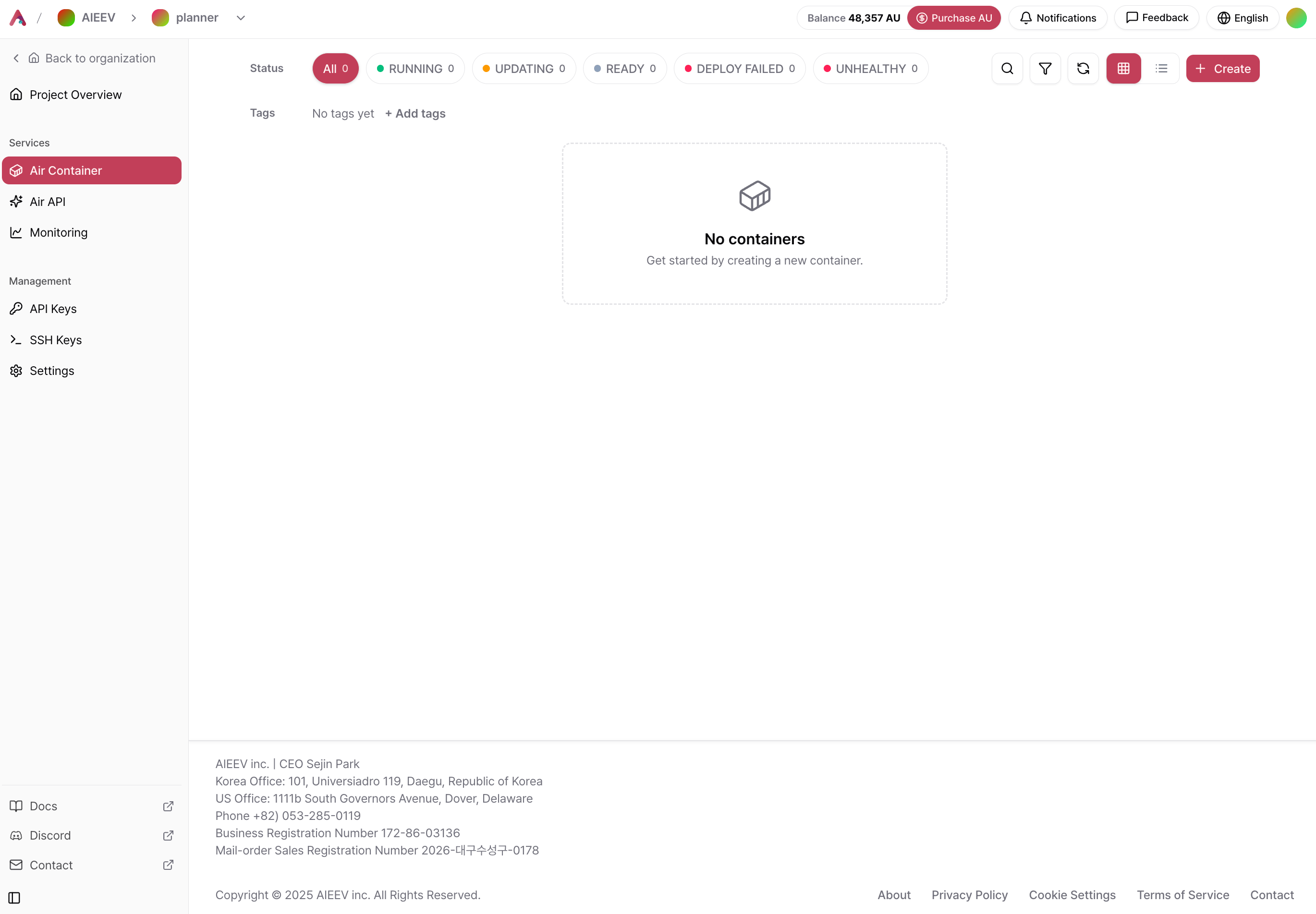
3. Choose a Deployment Method
Select how you want to create your container.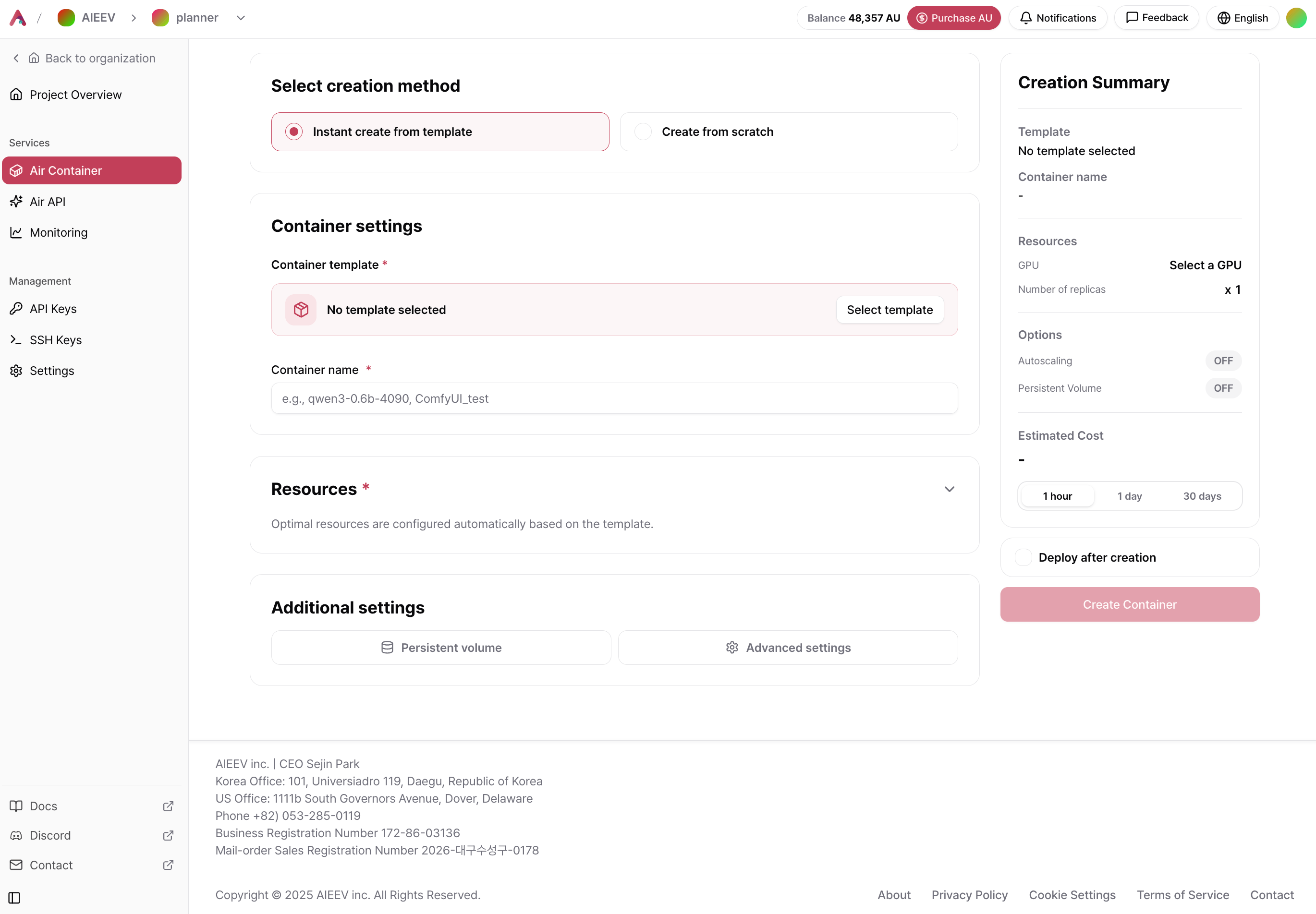
Deploy from a Template
1. Select a Template
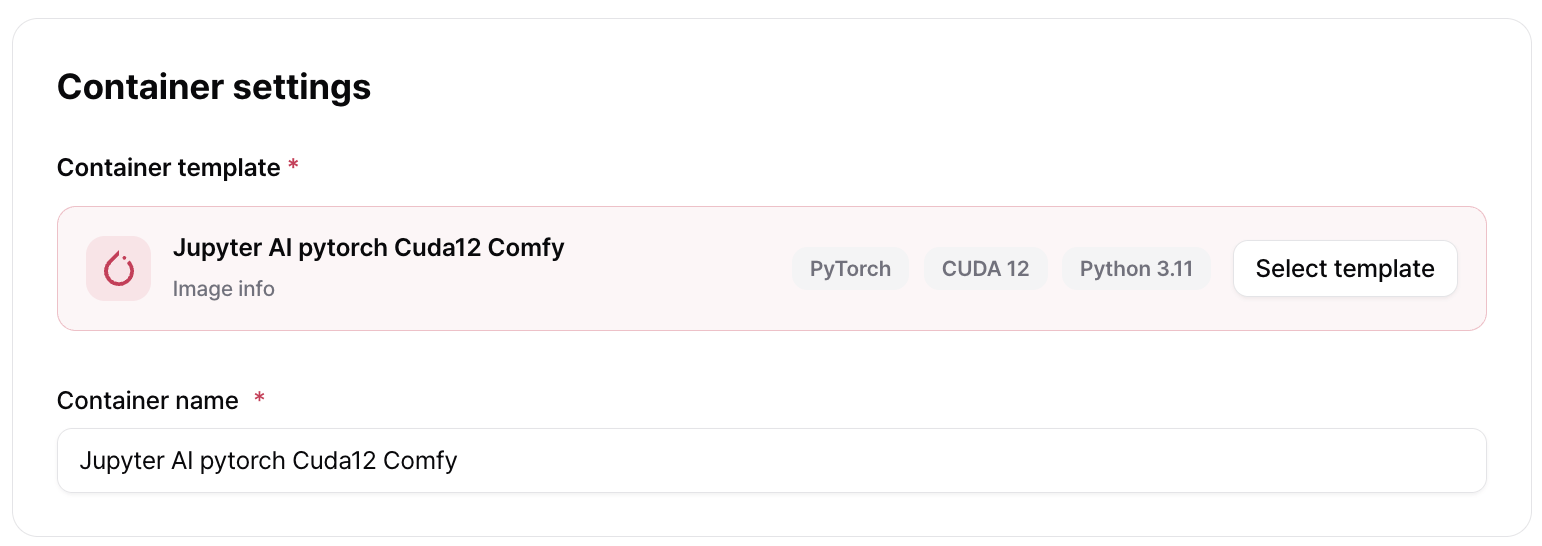
Click Select Template and choose the template you want to use.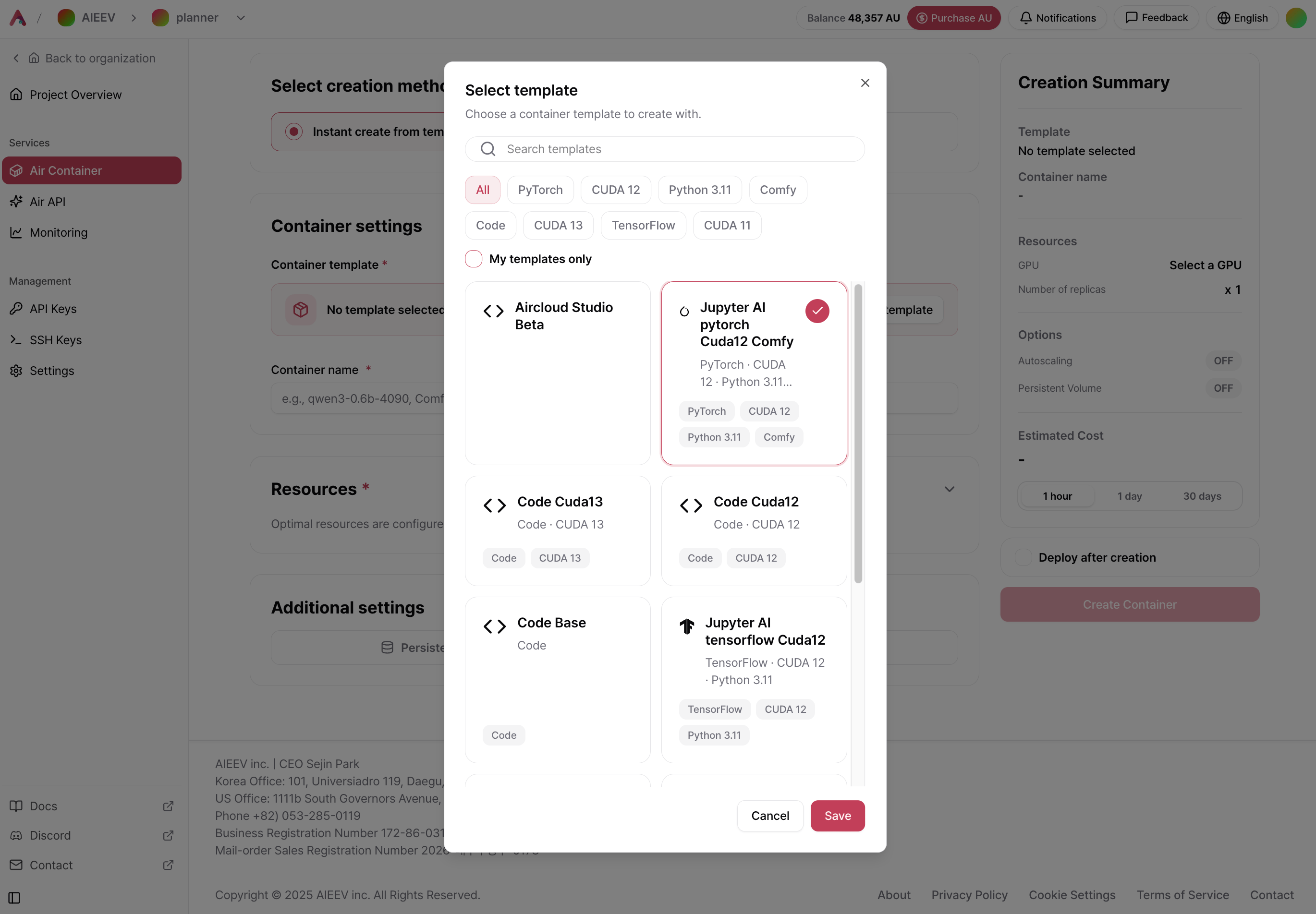
2. Configure Resources
Expand the Resources section to select the infrastructure option and GPU model.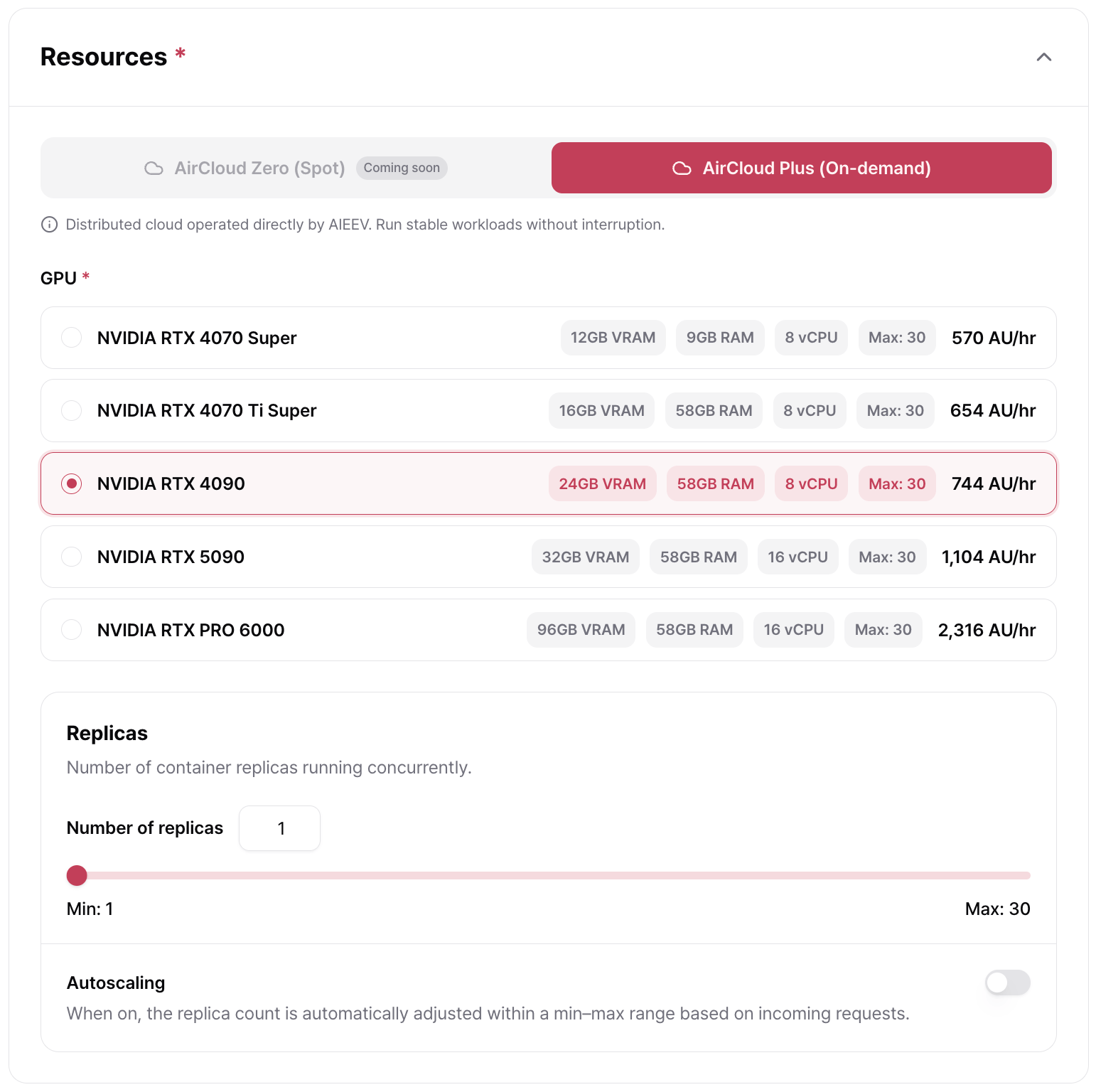
Infrastructure Options
Select a GPU
Each GPU option displays its available VRAM, system memory, vCPUs, maximum number of replicas, and hourly cost (C/hr).Configure Replicas
Replicas determine how many copies of your container run simultaneously. Adjust the desired number using the slider.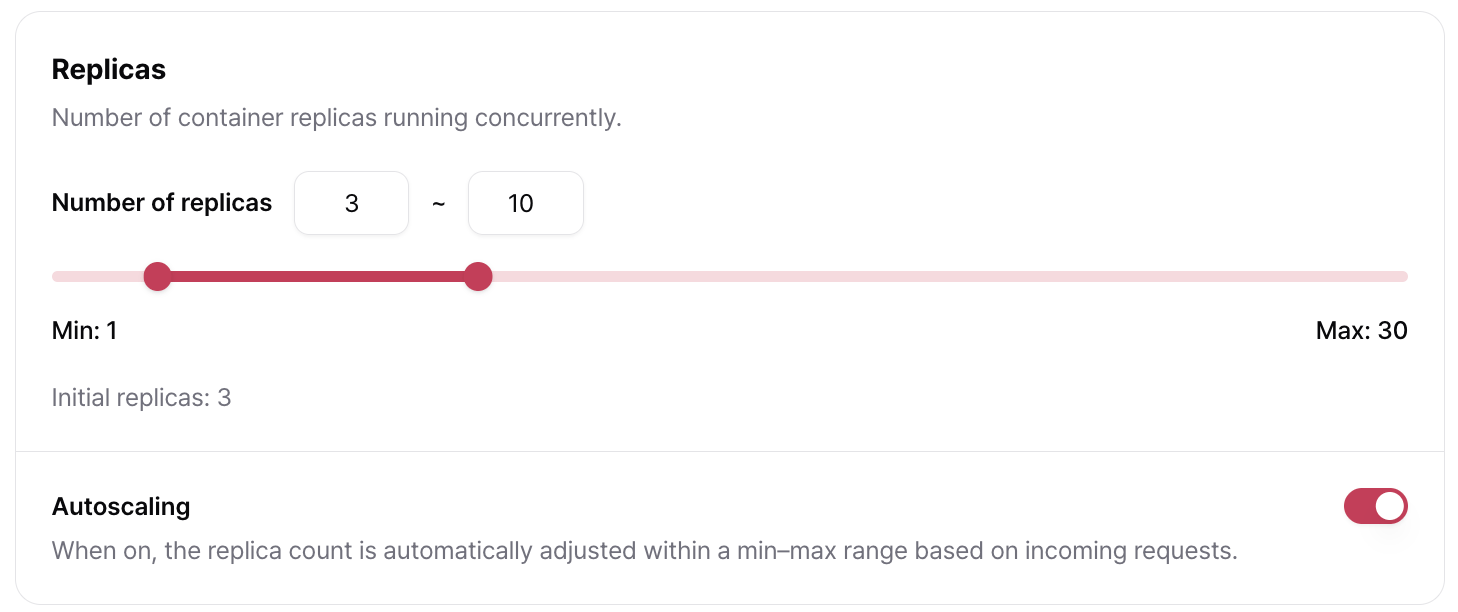
3. Additional Settings (Optional)
When deploying from a template, Persistent Storage and Advanced Settings are preconfigured. You can modify these settings as needed.Persistent Storage
Persistent Storage preserves your data even if the container is stopped or restarted. For more information, see Persistent Storage.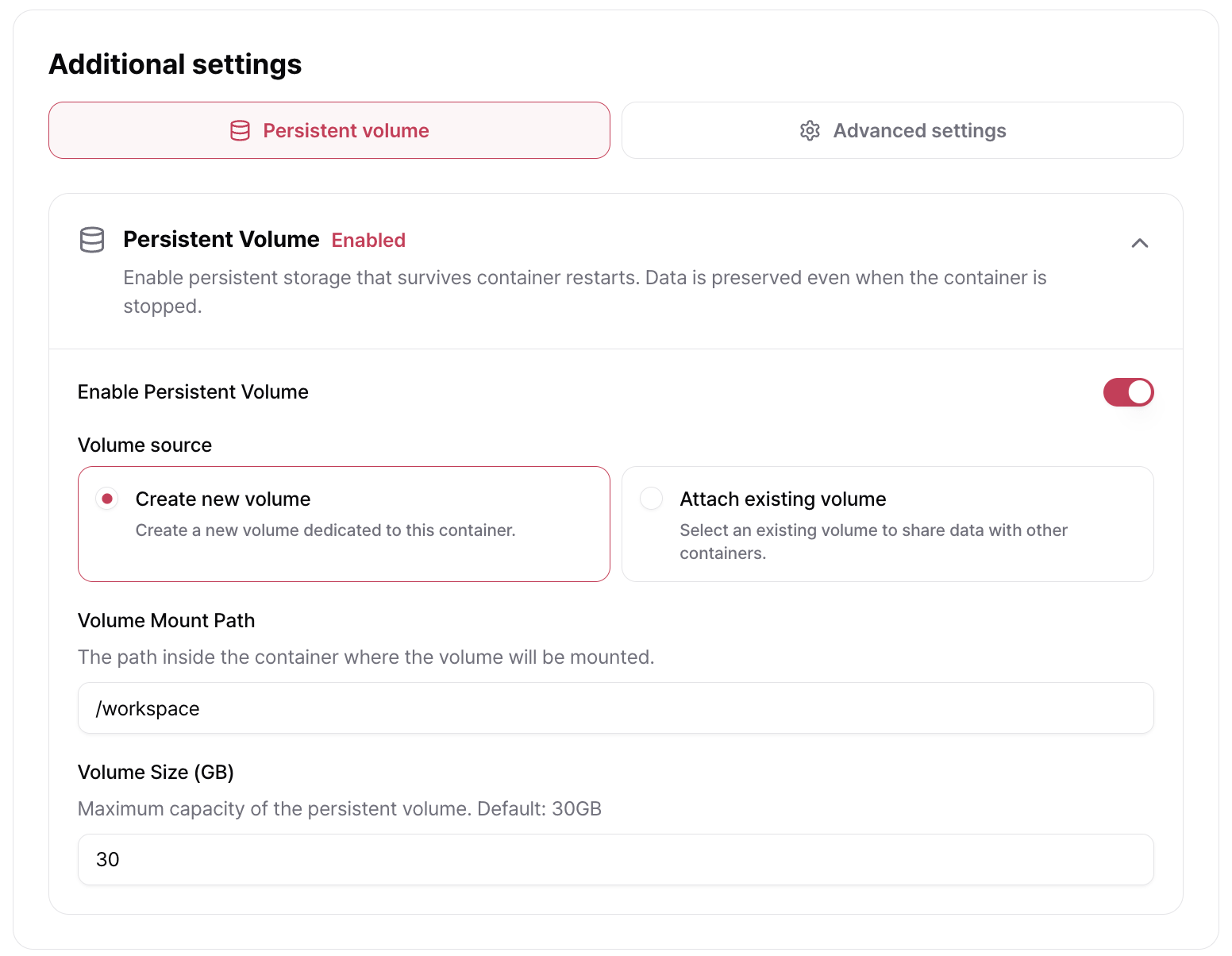
Advanced Settings
Advanced Settings provide fine-grained control over container behavior. All fields are optional.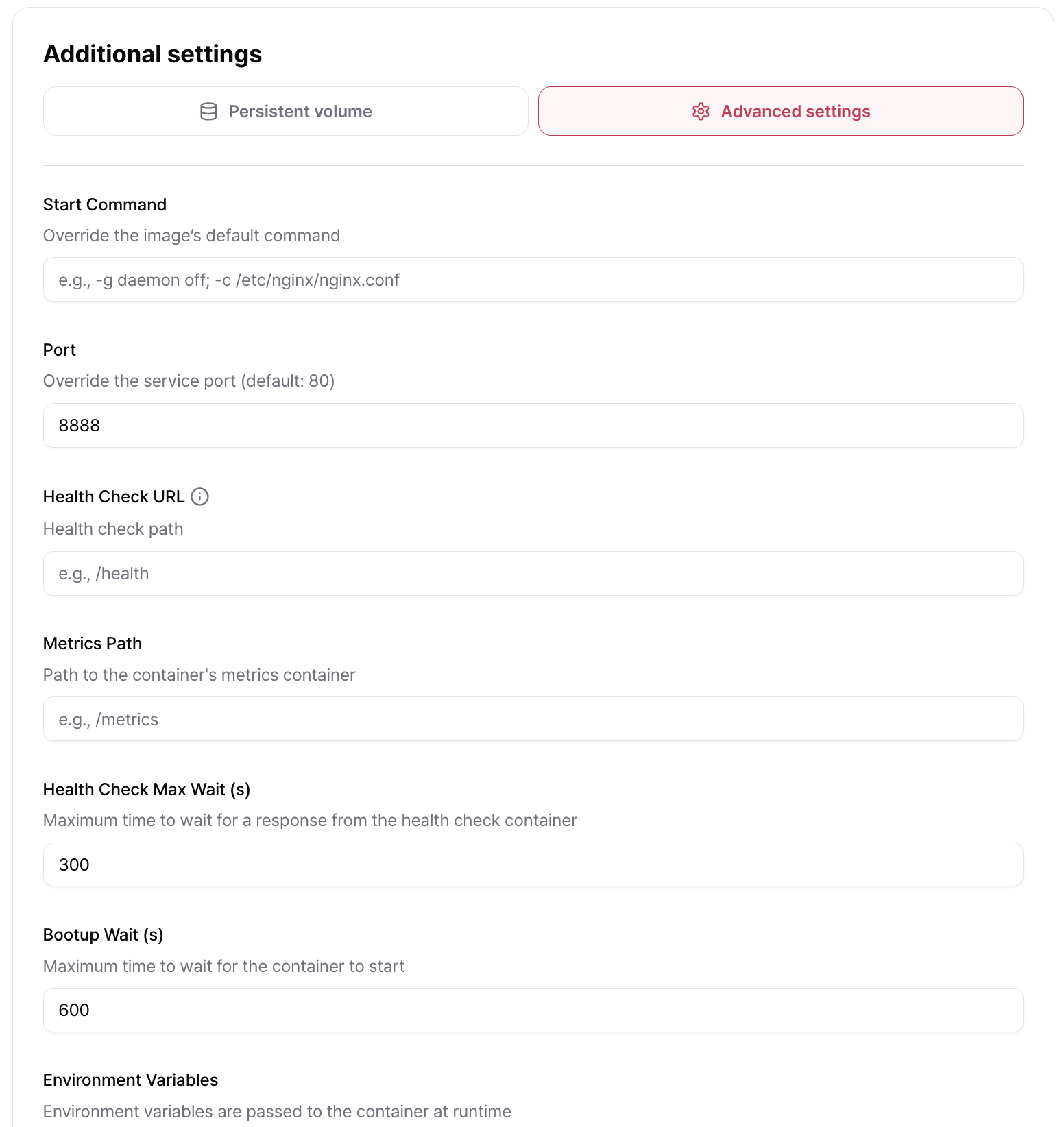
4. Create the Container
Review your configuration and estimated cost (1 Hour, 1 Day, and 30 Days) in the Deployment Summary panel, then click Create Container. Enable Deploy Immediately to start deployment as soon as the container is created. If disabled, the container is created in the Pending state and can be started manually later.Containers in the Pending state do not incur charges. Charges begin only after the container is started.
Create from Scratch
1. Configure the Container Name
Enter a container name and optionally assign tags.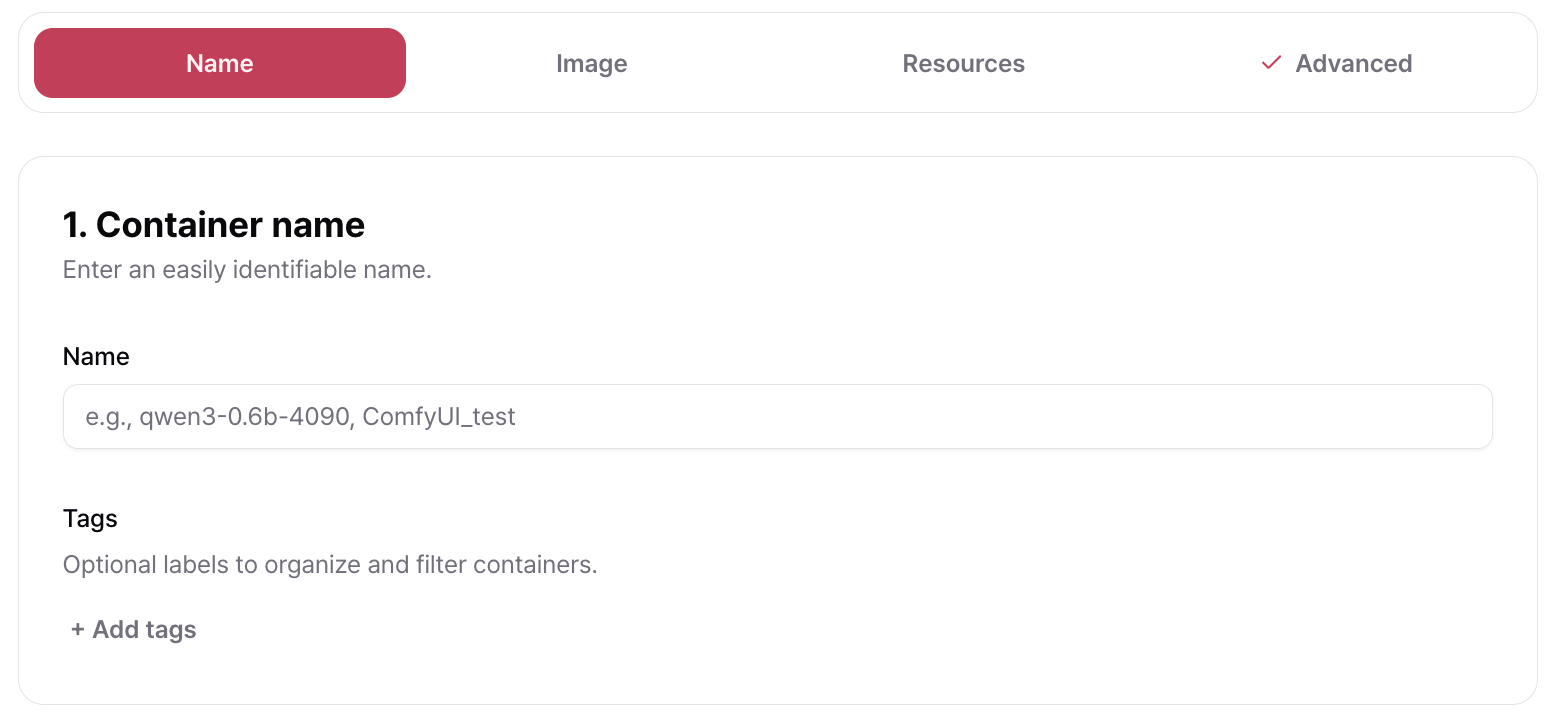
2. Configure the Container Image
Enter the container image URL. AirCloud automatically detects the registry provider from the image URL, but you can change it manually if needed.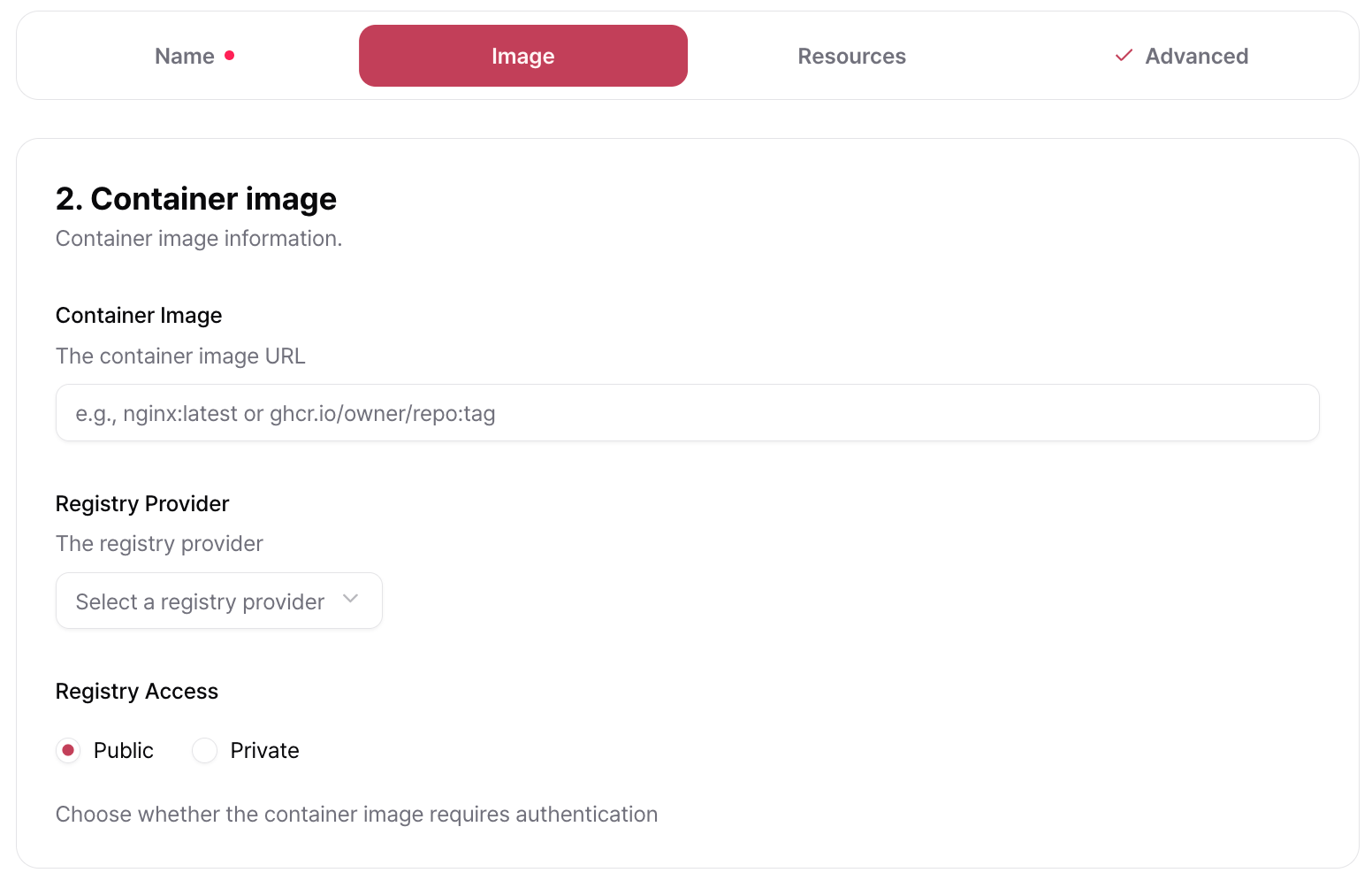
Supported registry providers:
- Google Artifact Registry
- Amazon Elastic Container Registry (ECR)
- GitHub Container Registry
- Docker Hub
3. Configure Resources
Infrastructure options, GPU selection, Replicas, and Persistent Storage are configured in the same way as described in Deploy from a Template.4. Configure Advanced Settings (Optional)
Startup commands, ports, health checks, and environment variables are configured in the same way as described in Advanced Settings.5. Create the Container
Review the configuration and estimated cost, then click Create Container.Next Steps
Autoscaling and Scheduled Scaling
Learn how to configure Autoscaling and Scheduled Scaling.
Monitoring
Learn how to monitor container metrics and logs after deployment.