> ## Documentation Index
> Fetch the complete documentation index at: https://docs.aieev.com/llms.txt
> Use this file to discover all available pages before exploring further.
# Organization Management
> Manage members, usage, reserved instances, and organization settings
An **Organization** is the top-level management unit in AirCloud. Members, Projects, usage, and billing are all managed at the Organization level.
* Create separate Projects for **API testing** and **production workloads**.
* Define member roles and project access permissions to keep your organization secure.
* Regularly review usage and billing to avoid unexpected costs.
* Verify your available credits and billing status before deploying workloads.
## Invite Members
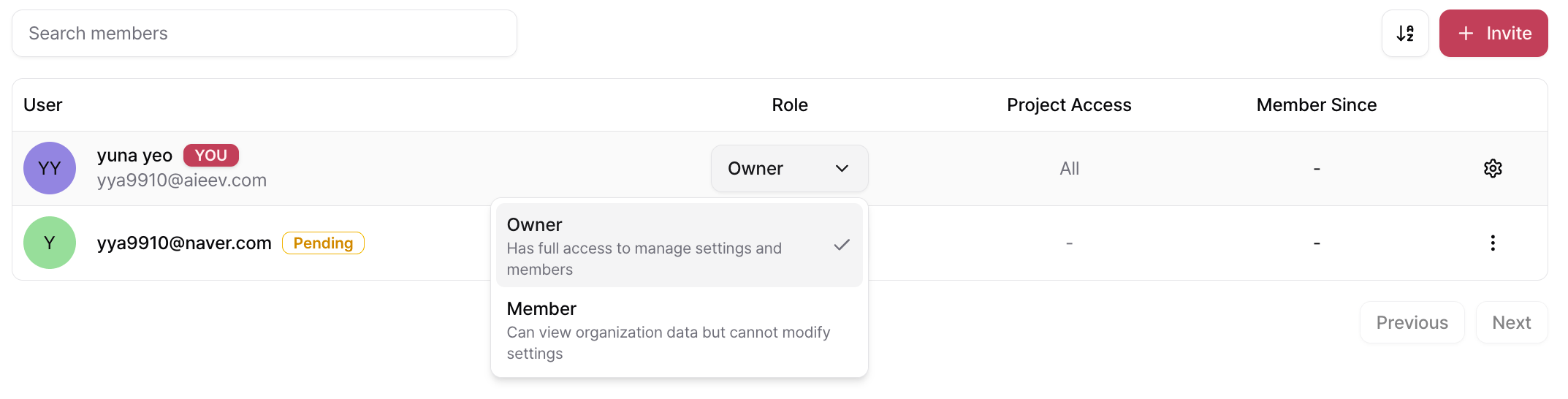
You can invite members to your Organization and assign roles. Permissions are determined by each member's assigned role.
 | Role | Description |
| :--------- | :-------------------------------------------------------------------------------------------------------------------------------- |
| **Owner** | Full administrative access to the Organization, including member management, billing, credits, and creating or deleting Projects. |
| **Member** | Can access assigned Projects and use AirCloud services, but cannot modify Organization settings or access billing features. |
To invite a member:
1. Open the **Members** tab in the Organization page.
2. Click **+ Invite** in the upper-right corner.
| Role | Description |
| :--------- | :-------------------------------------------------------------------------------------------------------------------------------- |
| **Owner** | Full administrative access to the Organization, including member management, billing, credits, and creating or deleting Projects. |
| **Member** | Can access assigned Projects and use AirCloud services, but cannot modify Organization settings or access billing features. |
To invite a member:
1. Open the **Members** tab in the Organization page.
2. Click **+ Invite** in the upper-right corner.
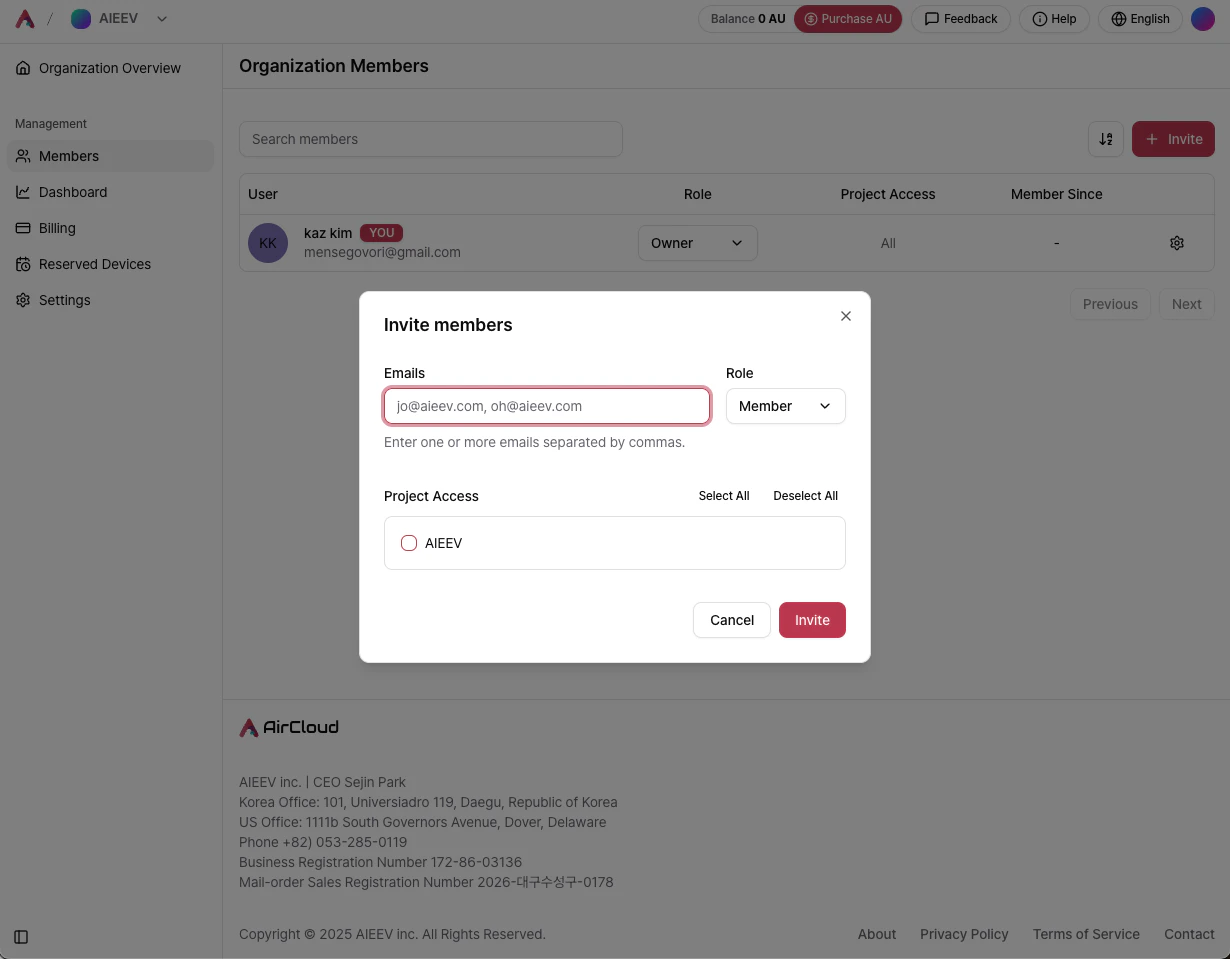 Then complete the following steps:
1. **Email Address** — Enter the email address of the member to invite. Multiple email addresses can be entered, separated by commas.
2. **Role** — Select either **Owner** or **Member**.
3. **Project Access** — Choose which Projects the member can access. You can grant access to all Projects or select individual Projects.
4. **Send Invitation** — Click **Invite** to send an invitation email.
* **Each AirCloud account can belong to only one Organization.** Members who already belong to another Organization cannot be invited.
* The invited user must register using the same email address that received the invitation.
* If the invited user is already signed in to another account, they should sign out before accepting the invitation to avoid authentication issues.
## Usage Management
### Usage
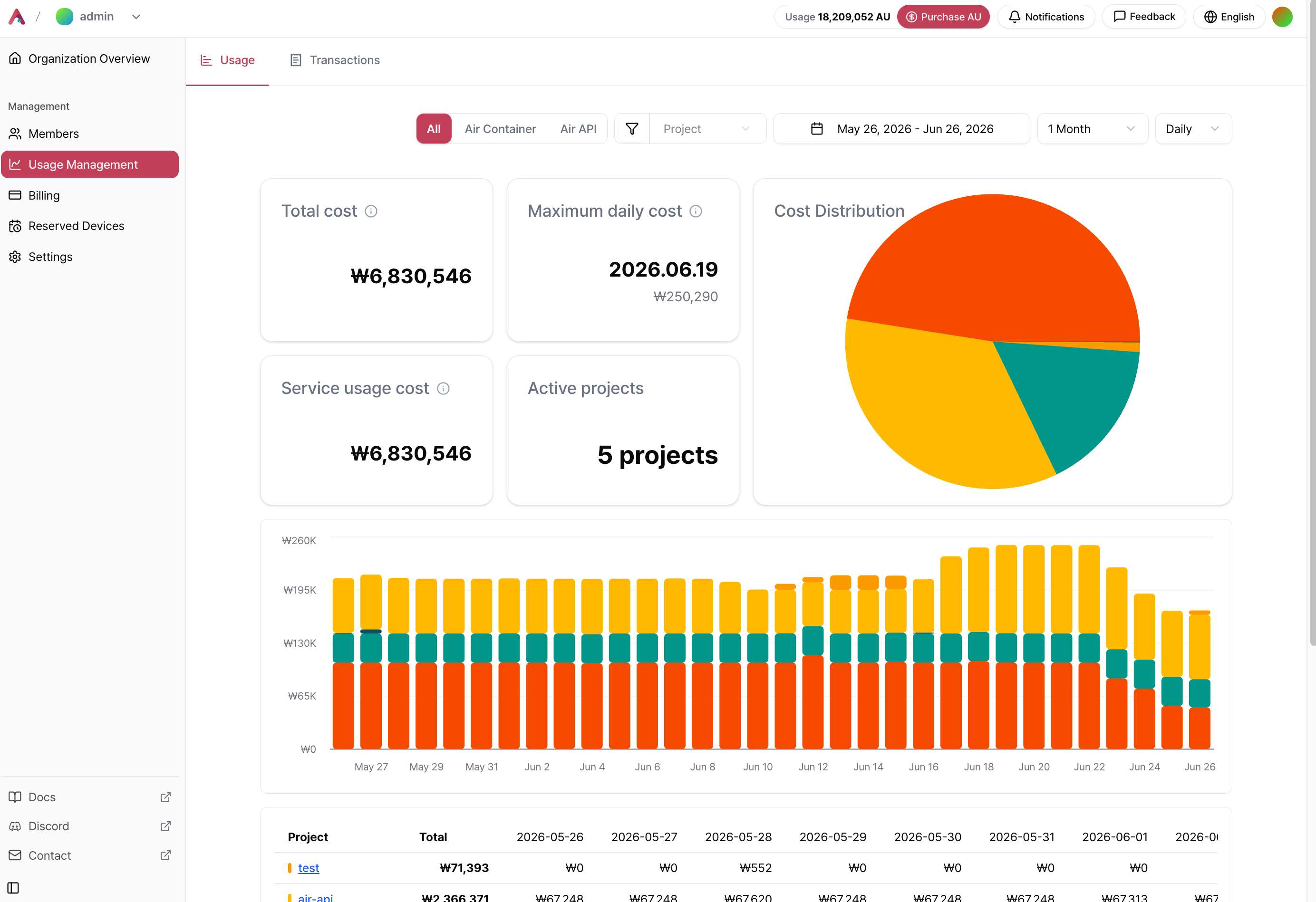
The **Usage** page provides an overview of your Organization's spending over time. Summary cards display total spending, highest daily spending, service costs, and the number of active Projects. Spending trends are also visualized using charts and tables.
Then complete the following steps:
1. **Email Address** — Enter the email address of the member to invite. Multiple email addresses can be entered, separated by commas.
2. **Role** — Select either **Owner** or **Member**.
3. **Project Access** — Choose which Projects the member can access. You can grant access to all Projects or select individual Projects.
4. **Send Invitation** — Click **Invite** to send an invitation email.
* **Each AirCloud account can belong to only one Organization.** Members who already belong to another Organization cannot be invited.
* The invited user must register using the same email address that received the invitation.
* If the invited user is already signed in to another account, they should sign out before accepting the invitation to avoid authentication issues.
## Usage Management
### Usage
The **Usage** page provides an overview of your Organization's spending over time. Summary cards display total spending, highest daily spending, service costs, and the number of active Projects. Spending trends are also visualized using charts and tables.
 ### Service Filters
| Service | Description |
| :---------------- | :-------------------------------------------- |
| **All** | Combined usage for Air Container and Air API. |
| **Air Container** | Usage for Air Container only. |
| **Air API** | Usage for Air API only. |
### Group By
| Service | Available Grouping Options |
| :---------------- | :---------------------------------- |
| **Air Container** | Project / Container / Instance Type |
| **Air API** | Project / Model / Model Type |
### Time Filters
* **Date Range** — Select a custom start and end date.
* **Preset Range** — Quickly select common ranges such as **1 Month** or **3 Months**.
* **Aggregation** — View usage aggregated by **Day** or **Month**.
### Transaction History
The **Transactions** page records **all AU deductions in 10-minute intervals**. Rather than simply showing billing history, it provides a detailed operational view of workload spending over time.
### Service Filters
| Service | Description |
| :---------------- | :-------------------------------------------- |
| **All** | Combined usage for Air Container and Air API. |
| **Air Container** | Usage for Air Container only. |
| **Air API** | Usage for Air API only. |
### Group By
| Service | Available Grouping Options |
| :---------------- | :---------------------------------- |
| **Air Container** | Project / Container / Instance Type |
| **Air API** | Project / Model / Model Type |
### Time Filters
* **Date Range** — Select a custom start and end date.
* **Preset Range** — Quickly select common ranges such as **1 Month** or **3 Months**.
* **Aggregation** — View usage aggregated by **Day** or **Month**.
### Transaction History
The **Transactions** page records **all AU deductions in 10-minute intervals**. Rather than simply showing billing history, it provides a detailed operational view of workload spending over time.
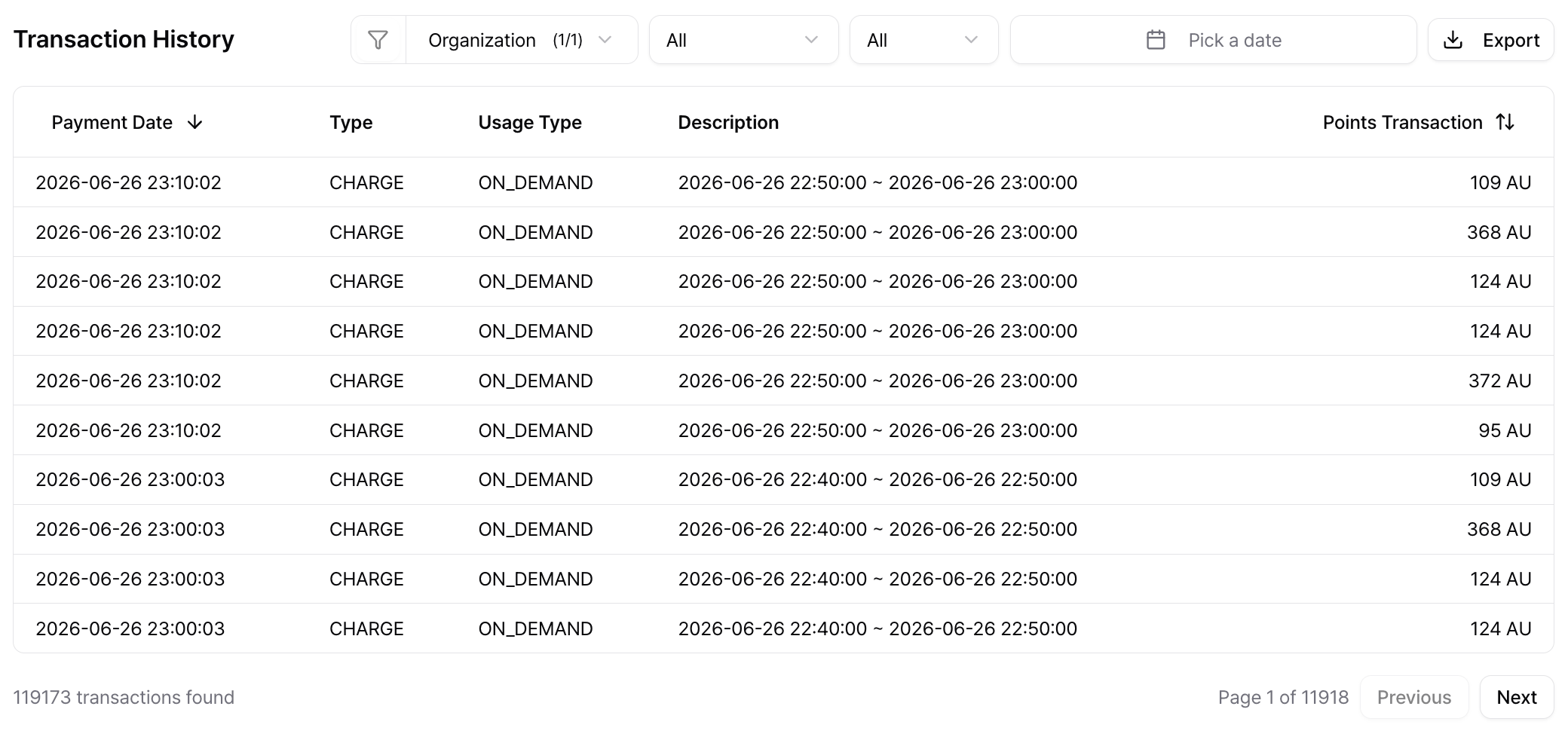 Transaction history can help you:
* **Identify Autoscaling events** by correlating increases in AU consumption with Replica scaling.
* **Verify actual costs** by reviewing spending at 10-minute intervals.
* **Analyze resource efficiency**, such as identifying workloads that continue to incur costs during periods of low traffic.
### Transaction Table
| Column | Description |
| :------------------- | :------------------------------------------------------------ |
| **Transaction Date** | Time when AU was deducted. |
| **Type** | Transaction type (for example, **Debit**). |
| **Usage Type** | Billing type, such as `ON_DEMAND`, `RESERVED`, or `API_CALL`. |
| **Description** | Billing period associated with the transaction. |
| **Amount (AU)** | AU deducted during the billing interval. |
### Filters
The Transactions page provides several filters to help you analyze billing data more effectively.
#### Group By
To identify which container generated a particular cost, change **Group By** to **Container**. Deleted containers are also included, making it useful for historical cost analysis.
| Option | Description |
| :--------------- | :---------------------------------------------------------------- |
| **Organization** | Displays all transactions across the Organization. |
| **Project** | Filters transactions by selected Projects. |
| **Container** | Displays transactions by container, including deleted containers. |
#### Usage Type
| Option | Description |
| :------------- | :----------------------- |
| **All** | Display all usage types. |
| **ON\_DEMAND** | On-demand GPU usage. |
| **RESERVED** | Reserved Instance usage. |
| **API\_CALL** | Air API usage. |
#### Transaction Type
| Option | Description |
| :--------- | :------------------------------------------------------ |
| **All** | Display both credits and debits. |
| **Debit** | AU deducted for service usage. |
| **Credit** | AU added through credit purchases or promotional codes. |
#### Date Range
Select a start and end date to display transactions within the specified period.
If spending is unexpectedly high during a particular period, narrow the date range and group transactions by **Container** to identify the responsible workload.
### Export Transactions
Click **Export** in the upper-right corner to download the filtered transaction history.
You can configure:
* **Date Range**
* **Columns** (including custom column order)
* **File Format** (`CSV`, `JSON`, or `TXT`)
Exporting a large number of transactions may take several minutes.
## Reserved Instances
Reserved Instances allow you to reserve GPU resources for **three months or longer**.
Reservations are arranged through the AirCloud team rather than directly through the Console. To request a reservation, contact us with your preferred GPU type and reservation period.
Compared to On-demand instances, Reserved Instances provide lower hourly pricing and guaranteed capacity.
Reserved GPU resources are shared across all Projects within the Organization rather than being dedicated to a single deployment.
### Reservation Details
* **Reservation Term** — Minimum reservation period is **3 months**. Longer terms receive larger discounts.
* **Billing** — Reservations are prepaid by default. Enterprise customers may also be billed by invoice.
Reserved Instances are managed from **Organization → Reserved Instances**.
| Status | Description |
| :------------ | :------------------------------------------------------ |
| **Active** | Reservation is active and available for use. |
| **Scheduled** | Reservation has been confirmed but has not yet started. |
| **Completed** | Reservation period has ended. |
| **Canceled** | Reservation has been canceled. |
## Organization Settings
The **Organization Settings** page allows Organization Owners to manage basic organization information, billing methods, and payment methods.
Changes take effect only after clicking **Save**.
| Field | Description |
| :-------------------- | :----------------------------------------------------------------------------------------- |
| **Organization Name** | Name used to identify the Organization. |
| **Description** | Brief description of the Organization. |
| **Billing Method** | Prepaid or Postpaid. |
| **Payment Method** | Registered payment method used for credits or invoices. |
| **Organization ID** | Unique identifier assigned when the Organization is created. This value cannot be changed. |
AirCloud uses a **prepaid** billing model by default. **Postpaid** billing is available for selected enterprise customers.
| Billing Method | Description |
| :------------- | :--------------------------------------------------------------------------- |
| **Prepaid** | Purchase AU credits in advance and consume them based on usage. |
| **Postpaid** | Use the service first and receive an invoice according to the billing cycle. |
For Postpaid billing, available AU credits are consumed first. Once the balance becomes negative, usage continues to accumulate as a negative balance. At the end of each month, an invoice is automatically generated for the outstanding amount. After payment is completed, the balance is reset to zero.
Enabling **Automatic Payment** allows invoices to be paid automatically using the registered payment method.
## Related Documentation
Learn how to purchase credits, configure Auto Top-up, and manage invoices.
Contact the AirCloud team or submit product feedback.
Transaction history can help you:
* **Identify Autoscaling events** by correlating increases in AU consumption with Replica scaling.
* **Verify actual costs** by reviewing spending at 10-minute intervals.
* **Analyze resource efficiency**, such as identifying workloads that continue to incur costs during periods of low traffic.
### Transaction Table
| Column | Description |
| :------------------- | :------------------------------------------------------------ |
| **Transaction Date** | Time when AU was deducted. |
| **Type** | Transaction type (for example, **Debit**). |
| **Usage Type** | Billing type, such as `ON_DEMAND`, `RESERVED`, or `API_CALL`. |
| **Description** | Billing period associated with the transaction. |
| **Amount (AU)** | AU deducted during the billing interval. |
### Filters
The Transactions page provides several filters to help you analyze billing data more effectively.
#### Group By
To identify which container generated a particular cost, change **Group By** to **Container**. Deleted containers are also included, making it useful for historical cost analysis.
| Option | Description |
| :--------------- | :---------------------------------------------------------------- |
| **Organization** | Displays all transactions across the Organization. |
| **Project** | Filters transactions by selected Projects. |
| **Container** | Displays transactions by container, including deleted containers. |
#### Usage Type
| Option | Description |
| :------------- | :----------------------- |
| **All** | Display all usage types. |
| **ON\_DEMAND** | On-demand GPU usage. |
| **RESERVED** | Reserved Instance usage. |
| **API\_CALL** | Air API usage. |
#### Transaction Type
| Option | Description |
| :--------- | :------------------------------------------------------ |
| **All** | Display both credits and debits. |
| **Debit** | AU deducted for service usage. |
| **Credit** | AU added through credit purchases or promotional codes. |
#### Date Range
Select a start and end date to display transactions within the specified period.
If spending is unexpectedly high during a particular period, narrow the date range and group transactions by **Container** to identify the responsible workload.
### Export Transactions
Click **Export** in the upper-right corner to download the filtered transaction history.
You can configure:
* **Date Range**
* **Columns** (including custom column order)
* **File Format** (`CSV`, `JSON`, or `TXT`)
Exporting a large number of transactions may take several minutes.
## Reserved Instances
Reserved Instances allow you to reserve GPU resources for **three months or longer**.
Reservations are arranged through the AirCloud team rather than directly through the Console. To request a reservation, contact us with your preferred GPU type and reservation period.
Compared to On-demand instances, Reserved Instances provide lower hourly pricing and guaranteed capacity.
Reserved GPU resources are shared across all Projects within the Organization rather than being dedicated to a single deployment.
### Reservation Details
* **Reservation Term** — Minimum reservation period is **3 months**. Longer terms receive larger discounts.
* **Billing** — Reservations are prepaid by default. Enterprise customers may also be billed by invoice.
Reserved Instances are managed from **Organization → Reserved Instances**.
| Status | Description |
| :------------ | :------------------------------------------------------ |
| **Active** | Reservation is active and available for use. |
| **Scheduled** | Reservation has been confirmed but has not yet started. |
| **Completed** | Reservation period has ended. |
| **Canceled** | Reservation has been canceled. |
## Organization Settings
The **Organization Settings** page allows Organization Owners to manage basic organization information, billing methods, and payment methods.
Changes take effect only after clicking **Save**.
| Field | Description |
| :-------------------- | :----------------------------------------------------------------------------------------- |
| **Organization Name** | Name used to identify the Organization. |
| **Description** | Brief description of the Organization. |
| **Billing Method** | Prepaid or Postpaid. |
| **Payment Method** | Registered payment method used for credits or invoices. |
| **Organization ID** | Unique identifier assigned when the Organization is created. This value cannot be changed. |
AirCloud uses a **prepaid** billing model by default. **Postpaid** billing is available for selected enterprise customers.
| Billing Method | Description |
| :------------- | :--------------------------------------------------------------------------- |
| **Prepaid** | Purchase AU credits in advance and consume them based on usage. |
| **Postpaid** | Use the service first and receive an invoice according to the billing cycle. |
For Postpaid billing, available AU credits are consumed first. Once the balance becomes negative, usage continues to accumulate as a negative balance. At the end of each month, an invoice is automatically generated for the outstanding amount. After payment is completed, the balance is reset to zero.
Enabling **Automatic Payment** allows invoices to be paid automatically using the registered payment method.
## Related Documentation
Learn how to purchase credits, configure Auto Top-up, and manage invoices.
Contact the AirCloud team or submit product feedback.