> ## Documentation Index
> Fetch the complete documentation index at: https://docs.aieev.com/llms.txt
> Use this file to discover all available pages before exploring further.
# Billing
> Manage credits, payment methods, Auto Top-up, invoices, and payment history
All billing and credit management features are available from **Organization → Billing**.
## Billing Overview
All usage and charges generated by Projects are aggregated and billed at the Organization level. Services can be used as long as your Organization has sufficient credits.
AirCloud uses **AU (AirCloud Unit)** as its billing unit, where **1 AU = KRW 1 (before VAT)**. Credits are purchased in the currency selected during onboarding (KRW or USD), and all AirCloud services deduct usage from your available AU balance.
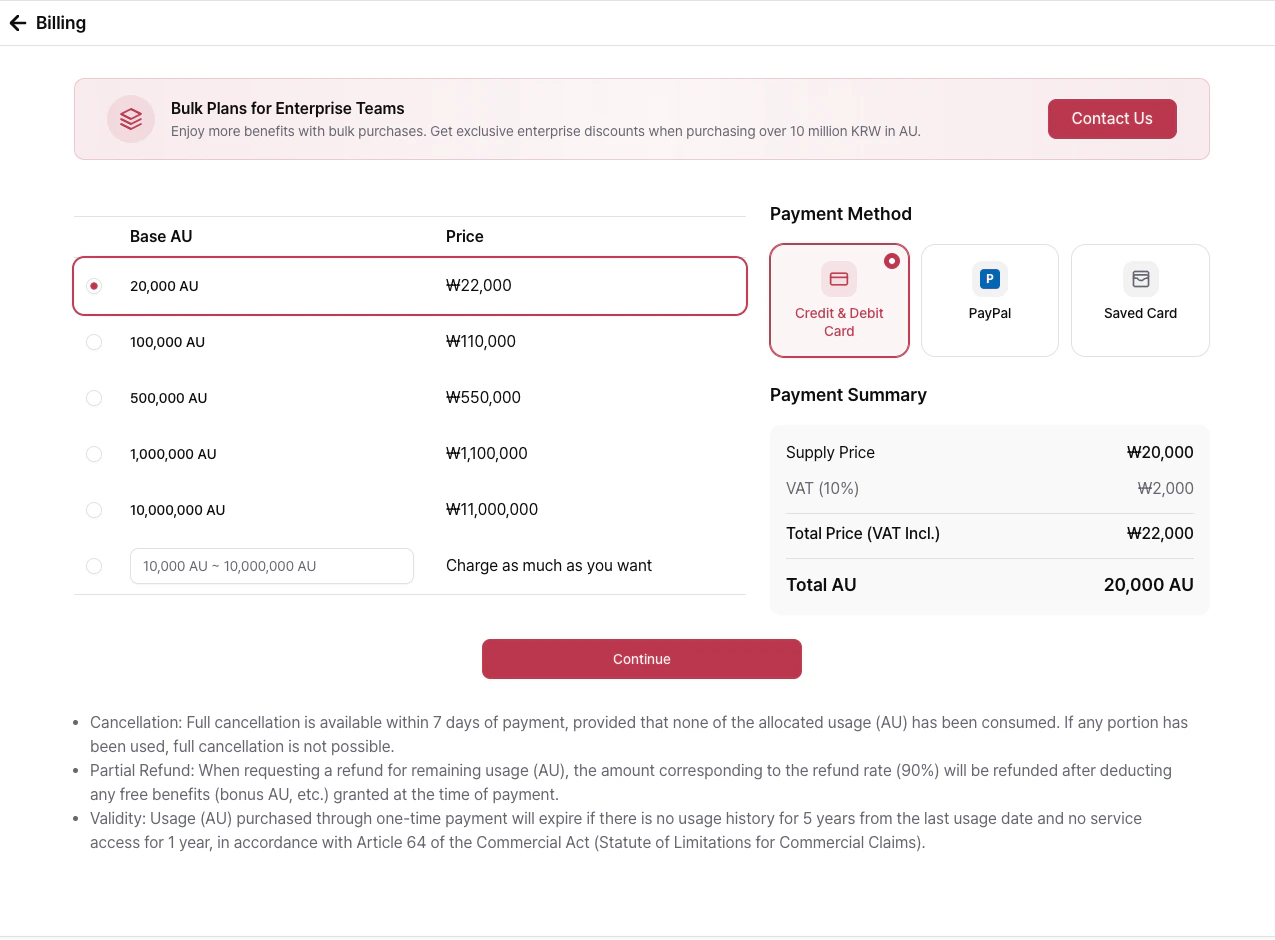 * AU is used for all AirCloud services, including API requests, GPU instances, and storage.
* Credit purchases are subject to **10% VAT**, in accordance with applicable tax regulations.
* The minimum credit purchase is **10,000 AU**.
* When your credits are exhausted, an email notification is sent. If credits are not replenished, running workloads may be terminated.
* To avoid service interruptions, we recommend enabling **Auto Top-up**.
* AU is used for all AirCloud services, including API requests, GPU instances, and storage.
* Credit purchases are subject to **10% VAT**, in accordance with applicable tax regulations.
* The minimum credit purchase is **10,000 AU**.
* When your credits are exhausted, an email notification is sent. If credits are not replenished, running workloads may be terminated.
* To avoid service interruptions, we recommend enabling **Auto Top-up**.
 ## Purchase Credits
AirCloud supports the following payment providers for purchasing AU credits:
* **Toss Payments** — Prepaid AU credits (Korea)
* **PayPal** — Prepaid AU credits (Global)
* **Stripe** — Prepaid AU credits and saved payment methods for Auto Top-up (Global)
## Payment Methods
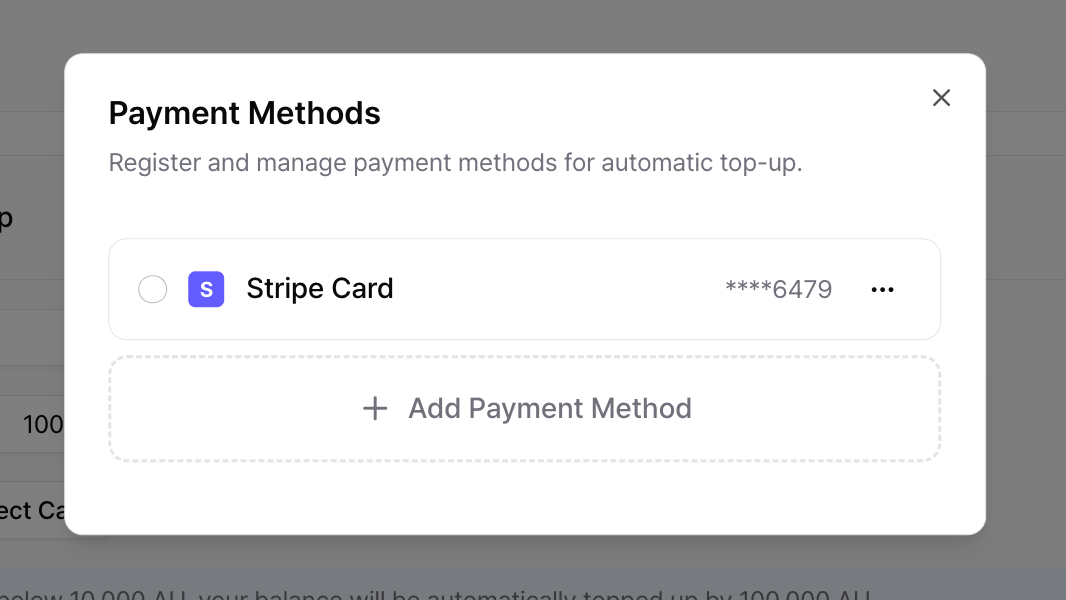
Register a payment card to use **Auto Top-up**.
Saved payment methods can also be reused for future credit purchases without entering card details again. You can register multiple payment methods and choose which one is used for Auto Top-up.
## Purchase Credits
AirCloud supports the following payment providers for purchasing AU credits:
* **Toss Payments** — Prepaid AU credits (Korea)
* **PayPal** — Prepaid AU credits (Global)
* **Stripe** — Prepaid AU credits and saved payment methods for Auto Top-up (Global)
## Payment Methods
Register a payment card to use **Auto Top-up**.
Saved payment methods can also be reused for future credit purchases without entering card details again. You can register multiple payment methods and choose which one is used for Auto Top-up.
 ## Auto Top-up
Auto Top-up automatically purchases AU credits when your remaining balance falls below a specified thresholdAuto Top-up automatically purchases AU credits when your remaining balance falls below a specified threshold.
Payments are charged automatically using your selected payment method, allowing you to maintain sufficient credits without manual intervention.
## Auto Top-up
Auto Top-up automatically purchases AU credits when your remaining balance falls below a specified thresholdAuto Top-up automatically purchases AU credits when your remaining balance falls below a specified threshold.
Payments are charged automatically using your selected payment method, allowing you to maintain sufficient credits without manual intervention.
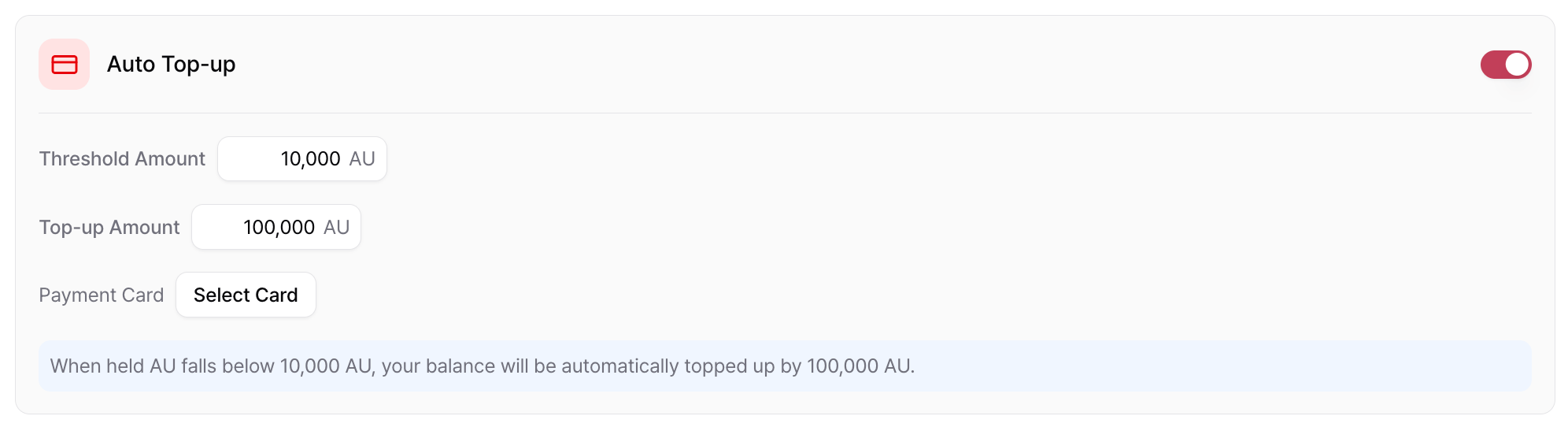 Configure the following settings:
* **Threshold** — Remaining AU balance that triggers Auto Top-up.
* **Top-up Amount** — Amount of AU to purchase automatically.
* **Payment Method** — Saved payment method used for automatic billing.
## Low Credit Notifications
Email notifications can be sent to Organization Owners when the remaining AU balance falls below a configured threshold.
Unlike Auto Top-up, this feature **does not automatically purchase credits**. It simply notifies Organization Owners so they can manually add credits.
Configure the following settings:
* **Threshold** — Remaining AU balance that triggers Auto Top-up.
* **Top-up Amount** — Amount of AU to purchase automatically.
* **Payment Method** — Saved payment method used for automatic billing.
## Low Credit Notifications
Email notifications can be sent to Organization Owners when the remaining AU balance falls below a configured threshold.
Unlike Auto Top-up, this feature **does not automatically purchase credits**. It simply notifies Organization Owners so they can manually add credits.
 * **Threshold** — Remaining AU balance that triggers the notification.
* **Recipients** — Organization Owners.
Low credit notifications send email alerts only. They do not automatically purchase credits.
## Invoices
Invoices are available for Organizations using **Postpaid Billing** and are intended primarily for enterprise customers.
Invoices are generated automatically at the end of each month based on the total unpaid usage accumulated during the billing period.
Generated invoices are available from **Organization → Billing → Invoices**, where you can:
* View invoice status.
* Download PDF invoices.
* Complete invoice payments.
### Invoice FieldFields
| ColumnColumn | Description |
| :------------------------------- | :-------------------------------------------------------------------------- |
| **Billing PeriodBilling Period** | Billing period covered by the invoiceBilling period covered by the invoice. |
| **StatusStatus** | Current invoice payment statusCurrent invoice payment status. |
| **Total AUTotal AU** | Total AU included in the invoiceTotal AU included in the invoice. |
| **Amount DueAmount Due** | Total amount to be paiTotal amount to be paid. |
| **Due Date** | Invoice payment deadline. |
| **Pay** | Pay an unpaid invoice. |
| **Download** | Download the invoice as a PDF. |
| **Due Date** | Invoice payment deadline. |
| **Pay** | Pay an unpaid invoice. |
| **Download** | Download the invoice as a PDF. |
### Invoice StatusInvoice Status
| Status | Description |
| :----------- | :---------------------------------------- |
| **Pending** | Invoice has been issued but not yet paid. |
| **Paid** | Invoice has been paid successfully. |
| **Overdue** | Payment deadline has passed. |
| **Canceled** | Invoice has been canceled. |
## Payment History
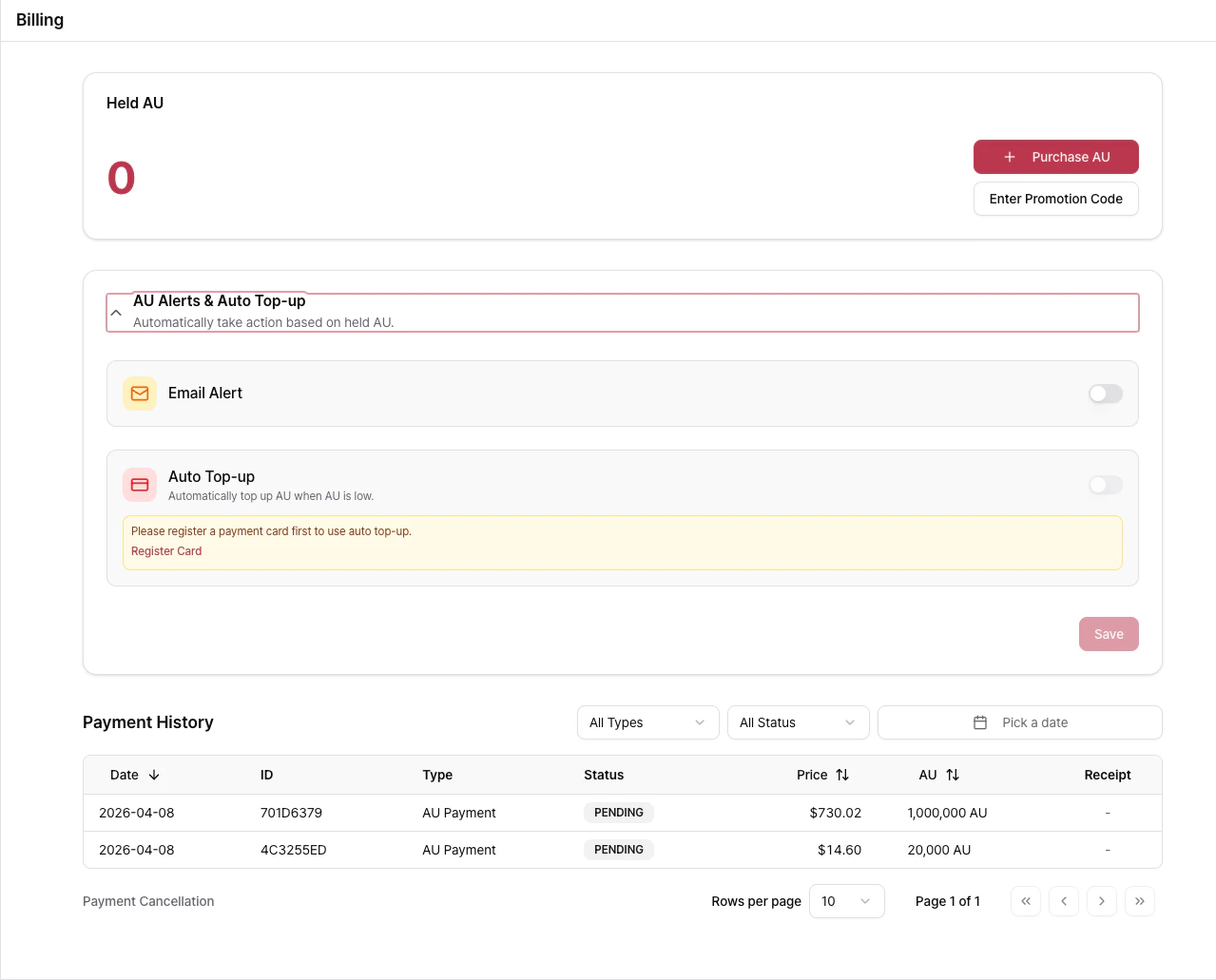
The **Payment History** page displays all credit purchases, promotional credits, Auto Top-up transactions, and invoice payments.
### Payment History Fields
| Column | Description |
| :---------- | :--------------------------------------------- |
| **Date** | Payment date and time. |
| **ID** | Unique payment identifier. |
| **Type** | Payment type. |
| **Status** | Payment processing status. |
| **Amount** | Amount paid. |
| **AU** | AU credited or purchased. |
| **Receipt** | Download the payment receipt (when available). |
Payments are categorized as **Pending**, **Completed**, **Failed**, or **Canceled**. Receipts are available for completed payments.
### Payment Types
| Type | Description |
| :------------------ | :--------------------------------------------------- |
| **Credit Purchase** | Purchase of AU credits. |
| **Promotion Code** | AU credits granted through a promotion code. |
| **Auto Top-up** | Credits automatically purchased through Auto Top-up. |
| **Invoice Payment** | Payment made toward an invoice. |
Payment history can be filtered by **Type**, **Status**, and **Date Range**, and sorted by **Date**, **Amount**, or **AU**.
## Promotion Codes
Promotion codes distributed through events, partnerships, or promotional campaigns can be redeemed from **Billing → Promotion Codes**.
* **Threshold** — Remaining AU balance that triggers the notification.
* **Recipients** — Organization Owners.
Low credit notifications send email alerts only. They do not automatically purchase credits.
## Invoices
Invoices are available for Organizations using **Postpaid Billing** and are intended primarily for enterprise customers.
Invoices are generated automatically at the end of each month based on the total unpaid usage accumulated during the billing period.
Generated invoices are available from **Organization → Billing → Invoices**, where you can:
* View invoice status.
* Download PDF invoices.
* Complete invoice payments.
### Invoice FieldFields
| ColumnColumn | Description |
| :------------------------------- | :-------------------------------------------------------------------------- |
| **Billing PeriodBilling Period** | Billing period covered by the invoiceBilling period covered by the invoice. |
| **StatusStatus** | Current invoice payment statusCurrent invoice payment status. |
| **Total AUTotal AU** | Total AU included in the invoiceTotal AU included in the invoice. |
| **Amount DueAmount Due** | Total amount to be paiTotal amount to be paid. |
| **Due Date** | Invoice payment deadline. |
| **Pay** | Pay an unpaid invoice. |
| **Download** | Download the invoice as a PDF. |
| **Due Date** | Invoice payment deadline. |
| **Pay** | Pay an unpaid invoice. |
| **Download** | Download the invoice as a PDF. |
### Invoice StatusInvoice Status
| Status | Description |
| :----------- | :---------------------------------------- |
| **Pending** | Invoice has been issued but not yet paid. |
| **Paid** | Invoice has been paid successfully. |
| **Overdue** | Payment deadline has passed. |
| **Canceled** | Invoice has been canceled. |
## Payment History
The **Payment History** page displays all credit purchases, promotional credits, Auto Top-up transactions, and invoice payments.
### Payment History Fields
| Column | Description |
| :---------- | :--------------------------------------------- |
| **Date** | Payment date and time. |
| **ID** | Unique payment identifier. |
| **Type** | Payment type. |
| **Status** | Payment processing status. |
| **Amount** | Amount paid. |
| **AU** | AU credited or purchased. |
| **Receipt** | Download the payment receipt (when available). |
Payments are categorized as **Pending**, **Completed**, **Failed**, or **Canceled**. Receipts are available for completed payments.
### Payment Types
| Type | Description |
| :------------------ | :--------------------------------------------------- |
| **Credit Purchase** | Purchase of AU credits. |
| **Promotion Code** | AU credits granted through a promotion code. |
| **Auto Top-up** | Credits automatically purchased through Auto Top-up. |
| **Invoice Payment** | Payment made toward an invoice. |
Payment history can be filtered by **Type**, **Status**, and **Date Range**, and sorted by **Date**, **Amount**, or **AU**.
## Promotion Codes
Promotion codes distributed through events, partnerships, or promotional campaigns can be redeemed from **Billing → Promotion Codes**.
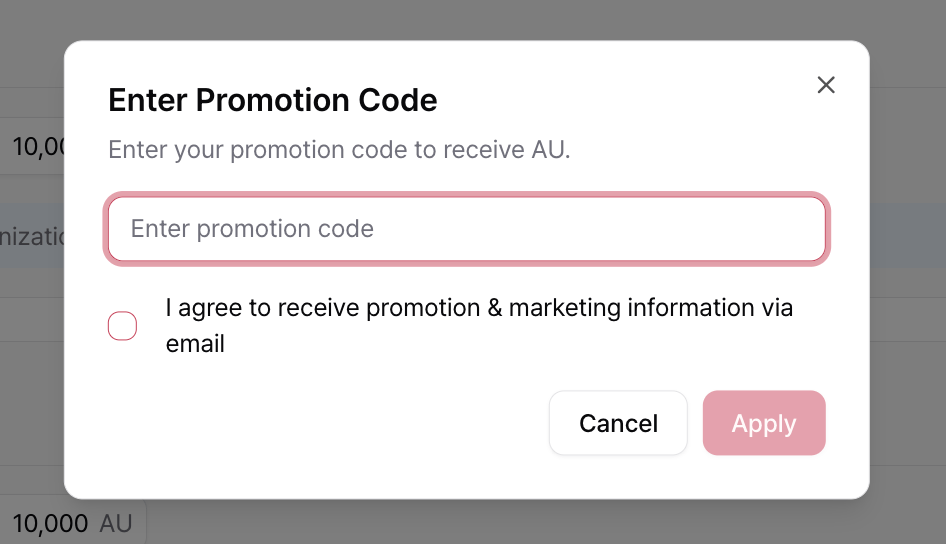 Once redeemed successfully, AU credits are added automatically. The transaction appears in **Payment History** with the **Promotion Code** payment type.
## Refund Policy
Unused credits may be refunded **within 7 days of purchase**. Refunds are calculated based on the pre-tax purchase amount. VAT is non-refundable.
The following are **not eligible for refunds**:
* Credits that have already been consumed.
* Prepaid promotional credits.
* Reserved GPU packages and reserved-capacity products.
* Credits issued through promotion codes.
Billing disputes must be submitted **within 15 days** of receiving the invoice. If no dispute is raised during this period, the invoice is considered accepted.
Service fees are exclusive of applicable taxes. Customers are responsible for all taxes, duties, and fees other than AIEEV's corporate income tax.
For refund requests or detailed terms, see the [**Terms of Service**](https://www.aieev.com/termsofservices) or [Contact](https://www.aieev.com/contact) the AirCloud support team.
## Related Documentation
Learn how to manage members, usage, reserved instances, and organization settings.
Contact the AirCloud team or submit product feedback.
Once redeemed successfully, AU credits are added automatically. The transaction appears in **Payment History** with the **Promotion Code** payment type.
## Refund Policy
Unused credits may be refunded **within 7 days of purchase**. Refunds are calculated based on the pre-tax purchase amount. VAT is non-refundable.
The following are **not eligible for refunds**:
* Credits that have already been consumed.
* Prepaid promotional credits.
* Reserved GPU packages and reserved-capacity products.
* Credits issued through promotion codes.
Billing disputes must be submitted **within 15 days** of receiving the invoice. If no dispute is raised during this period, the invoice is considered accepted.
Service fees are exclusive of applicable taxes. Customers are responsible for all taxes, duties, and fees other than AIEEV's corporate income tax.
For refund requests or detailed terms, see the [**Terms of Service**](https://www.aieev.com/termsofservices) or [Contact](https://www.aieev.com/contact) the AirCloud support team.
## Related Documentation
Learn how to manage members, usage, reserved instances, and organization settings.
Contact the AirCloud team or submit product feedback.