> ## Documentation Index
> Fetch the complete documentation index at: https://docs.aieev.com/llms.txt
> Use this file to discover all available pages before exploring further.
# Models and Playground
> Select supported models and test them in Playground
Air API lets you select supported models within your Project and test them directly in your browser using the Playground.
## Supported Models
For detailed specifications and usage examples of each model, see the [Models](/models) page.
| Model | Type |
| :----------------------: | :-------: |
| Qwen: Qwen3-Embedding-8B | Embedding |
| Qwen: Qwen3-TTS | TTS |
| Qwen: Qwen3.5-9B | Chat |
| Qwen: Qwen3.5-35B-A3B | Chat |
* **Chat**: Conversational models that generate responses from text prompts. Suitable for tasks such as chatbots, summarization, and code generation. Pricing is based on input and output tokens (/M tokens).
* **Embedding**: Models that convert text into vector embeddings for semantic search, classification, and similarity search. Pricing is based on input tokens (/M tokens).
* **TTS**: Models that convert text into speech. Pricing is based on the number of input characters (/K chars).
If the model you need is not available, you can request it through our feedback channel.
## Playground
The Playground is a web-based interface for testing models directly in your browser. It allows you to quickly validate model behavior and experiment with parameters before integrating the API into your application.
Playground is available only for **Chat** and **TTS** models. Embedding models do not provide a Playground and can only be used through the API.
The Playground provides two tabs:
* **Playground** — Interact with the selected model directly.
* **README** — Learn about the selected model's capabilities and usage.
You can also access **Generate API Key** and **View Code** from the buttons in the upper-right corner.
The Playground interface and available settings vary depending on the model type.
### Chat Models
The Chat Playground provides a conversational interface where you can enter prompts and receive responses from the selected model.
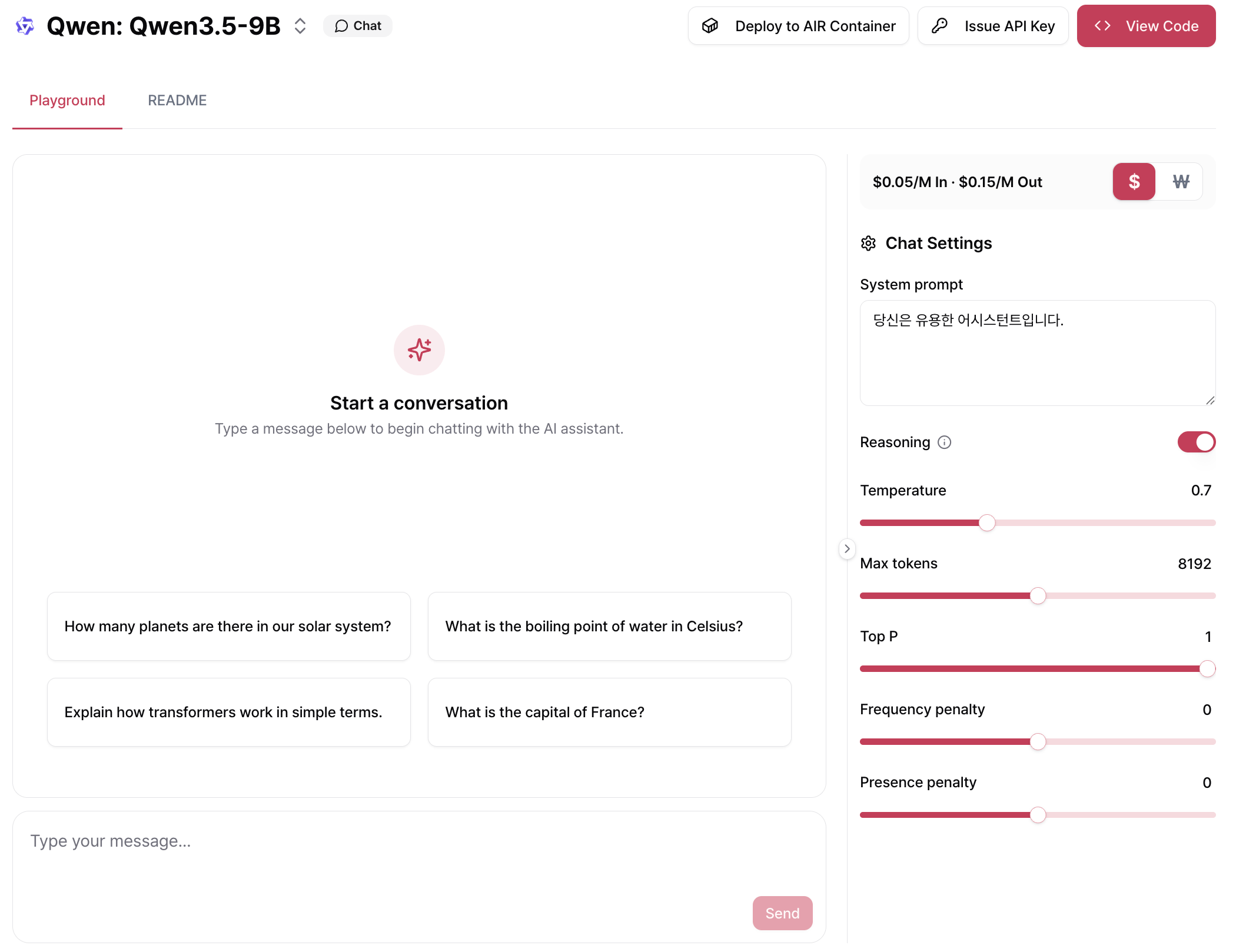 Use the **Chat Settings** panel on the right to configure model behavior.
| Setting | Description |
| :-------------------- | :------------------------------------------------------------------------------------------------------------------------------------------------------------------------------------------------------- |
| **System Prompt** | Sets the initial instruction that defines the model's role or behavior. This prompt is applied throughout the conversation. |
| **Reasoning** | Enables reasoning before generating a response. This may increase latency and token usage but can improve accuracy on complex tasks. |
| **Temperature** | Controls the randomness of generated responses. Higher values produce more diverse and creative outputs, while lower values generate more consistent and deterministic responses. |
| **Max Tokens** | Sets the maximum number of tokens the model can generate in a single response. The sum of the prompt tokens and `max_tokens` cannot exceed the model's context length. |
| **Top P** | Uses nucleus sampling as an alternative to temperature sampling. Only tokens within the top cumulative probability are considered, allowing you to control response diversity together with Temperature. |
| **Frequency Penalty** | Reduces the likelihood of repeating words or phrases based on how frequently they have already appeared in the generated text. |
| **Presence Penalty** | Encourages the model to introduce new topics by penalizing tokens that have already appeared in the conversation. |
### TTS Models
The TTS Playground lets you generate speech from text. Enter the text you want to convert, then click **Generate** to create and play the audio.
Use the **Chat Settings** panel on the right to configure model behavior.
| Setting | Description |
| :-------------------- | :------------------------------------------------------------------------------------------------------------------------------------------------------------------------------------------------------- |
| **System Prompt** | Sets the initial instruction that defines the model's role or behavior. This prompt is applied throughout the conversation. |
| **Reasoning** | Enables reasoning before generating a response. This may increase latency and token usage but can improve accuracy on complex tasks. |
| **Temperature** | Controls the randomness of generated responses. Higher values produce more diverse and creative outputs, while lower values generate more consistent and deterministic responses. |
| **Max Tokens** | Sets the maximum number of tokens the model can generate in a single response. The sum of the prompt tokens and `max_tokens` cannot exceed the model's context length. |
| **Top P** | Uses nucleus sampling as an alternative to temperature sampling. Only tokens within the top cumulative probability are considered, allowing you to control response diversity together with Temperature. |
| **Frequency Penalty** | Reduces the likelihood of repeating words or phrases based on how frequently they have already appeared in the generated text. |
| **Presence Penalty** | Encourages the model to introduce new topics by penalizing tokens that have already appeared in the conversation. |
### TTS Models
The TTS Playground lets you generate speech from text. Enter the text you want to convert, then click **Generate** to create and play the audio.
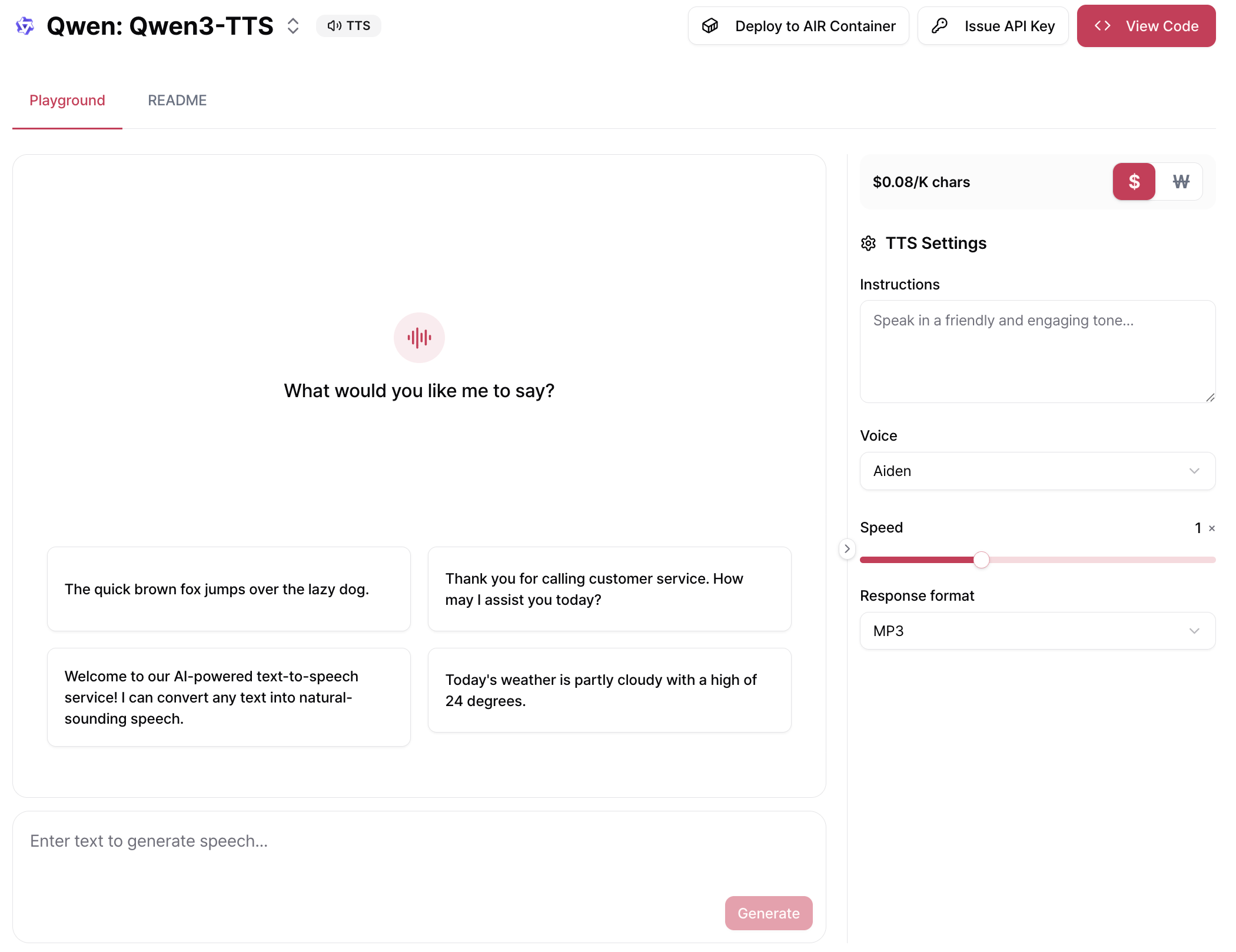 Use the **TTS Settings** panel on the right to configure speech generation.
| Setting | Description |
| :------------------ | :---------------------------------------------------------------------------------------------------------------- |
| **Instructions** | Provides guidance for the voice style or speaking tone (for example, *"Speak in a friendly and engaging tone."*). |
| **Voice** | Selects the voice used for speech generation. (Currently supports 9 voice options.) |
| **Speed** | Adjusts the playback speed of the generated audio. The default value is **1×**. |
| **Response Format** | Selects the output audio format. Supported formats: **MP3, Opus, AAC, FLAC, WAV, and PCM**. |
Chat and Embedding models are priced per **million tokens (/M tokens)**, while TTS models are priced per **thousand characters (/K chars)**. Use the currency toggle (₩ / \$) to switch between KRW and USD pricing.
## Related Documentation
Learn the overall Air API workflow and complete the Quickstart.
Learn how to call the API and follow operational best practices.
Find solutions to common issues and errors.
Explore detailed specifications and usage examples for each supported model.
Use the **TTS Settings** panel on the right to configure speech generation.
| Setting | Description |
| :------------------ | :---------------------------------------------------------------------------------------------------------------- |
| **Instructions** | Provides guidance for the voice style or speaking tone (for example, *"Speak in a friendly and engaging tone."*). |
| **Voice** | Selects the voice used for speech generation. (Currently supports 9 voice options.) |
| **Speed** | Adjusts the playback speed of the generated audio. The default value is **1×**. |
| **Response Format** | Selects the output audio format. Supported formats: **MP3, Opus, AAC, FLAC, WAV, and PCM**. |
Chat and Embedding models are priced per **million tokens (/M tokens)**, while TTS models are priced per **thousand characters (/K chars)**. Use the currency toggle (₩ / \$) to switch between KRW and USD pricing.
## Related Documentation
Learn the overall Air API workflow and complete the Quickstart.
Learn how to call the API and follow operational best practices.
Find solutions to common issues and errors.
Explore detailed specifications and usage examples for each supported model.