> ## Documentation Index
> Fetch the complete documentation index at: https://docs.aieev.com/llms.txt
> Use this file to discover all available pages before exploring further.
# Air API
> Quickly integrate and test AI models through APIs
Air API is an API-based workload that lets you quickly integrate AI models by selecting a supported model within your Project and generating a secret key. You can immediately test your integration using code samples or the Playground, without managing any infrastructure. It is ideal for rapid prototyping, proof-of-concept (PoC) projects, and applications that require fast model integration.
## What You Can Do with Air API
Choose the AI model that best fits your use case. New models are continuously added.
Select the API endpoints you want to access and generate a secret key.
Verify your integration immediately using the generated secret key.
Interact with models directly from your browser using the web-based Playground.
## Quickstart
### 1. Select Air API from the Project Overview
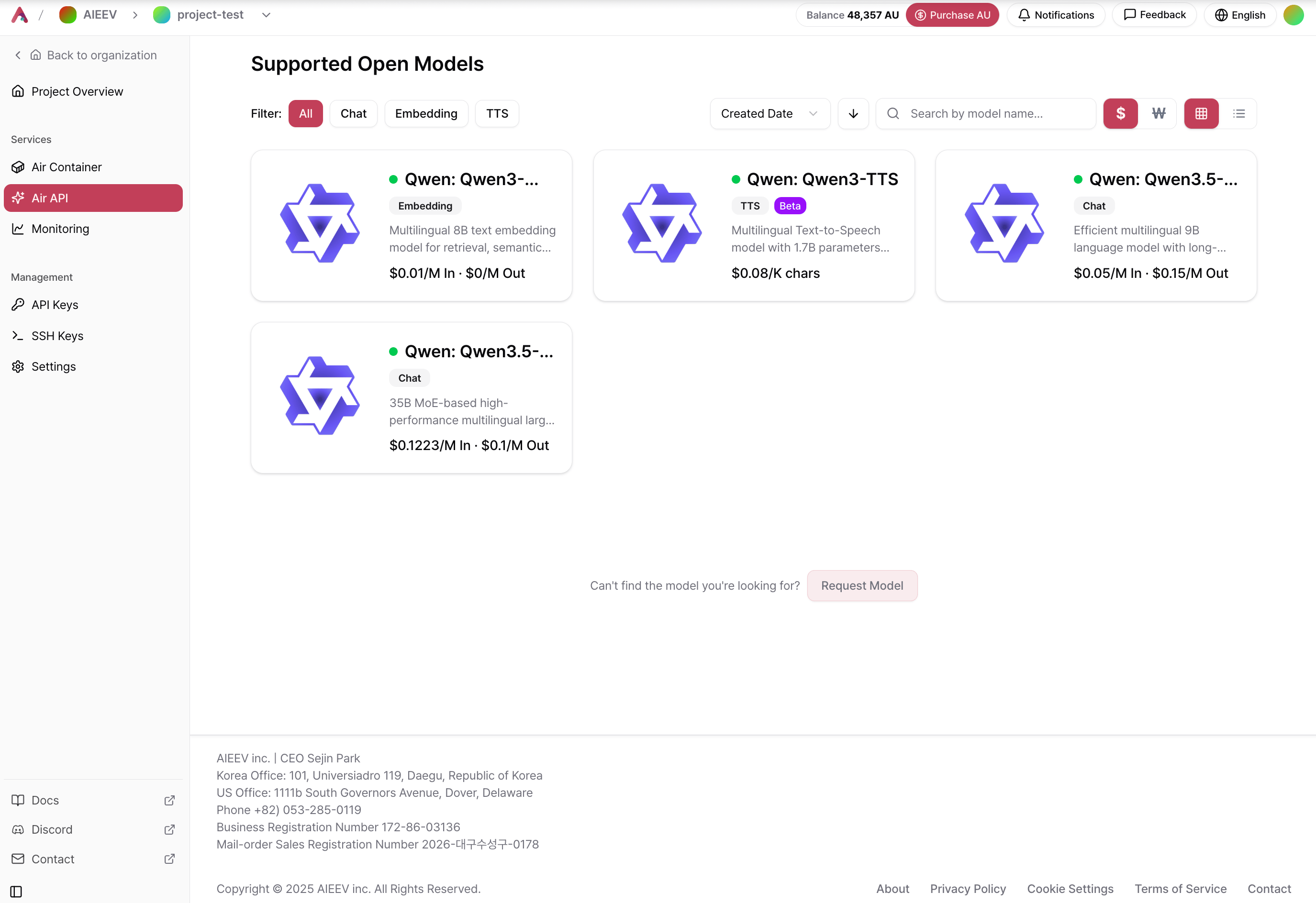 After creating your Organization and Project, navigate to the Project Overview page and select **Air API**.
### 2. Select a Model
After creating your Organization and Project, navigate to the Project Overview page and select **Air API**.
### 2. Select a Model
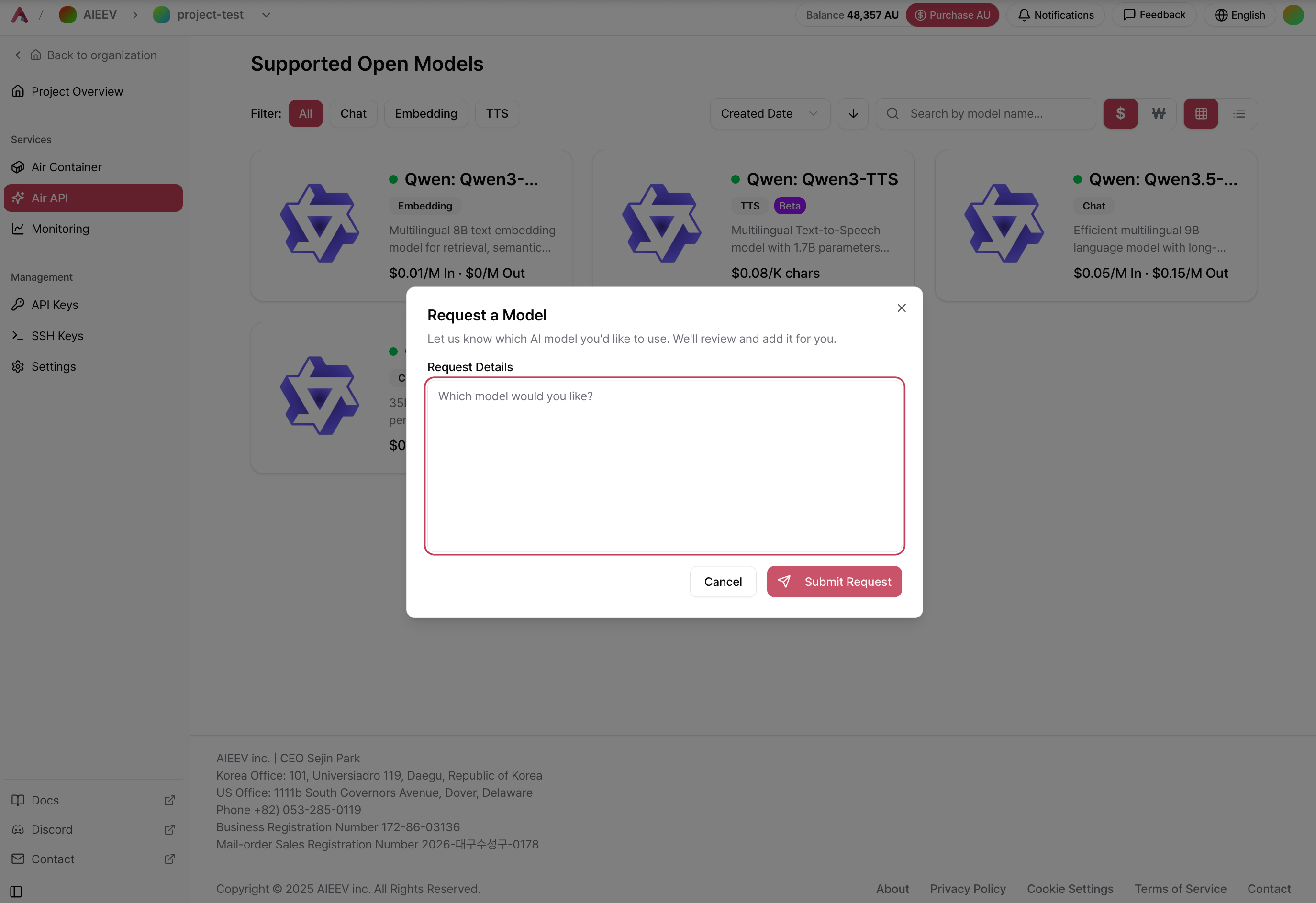 Create an API workload and select the model you want to use. If the model you need is not available, you can submit a request through our feedback channel.
### 3. Generate a Secret Key
Go to **API Keys** → **Create New Secret Key**.
Create an API workload and select the model you want to use. If the model you need is not available, you can submit a request through our feedback channel.
### 3. Generate a Secret Key
Go to **API Keys** → **Create New Secret Key**.
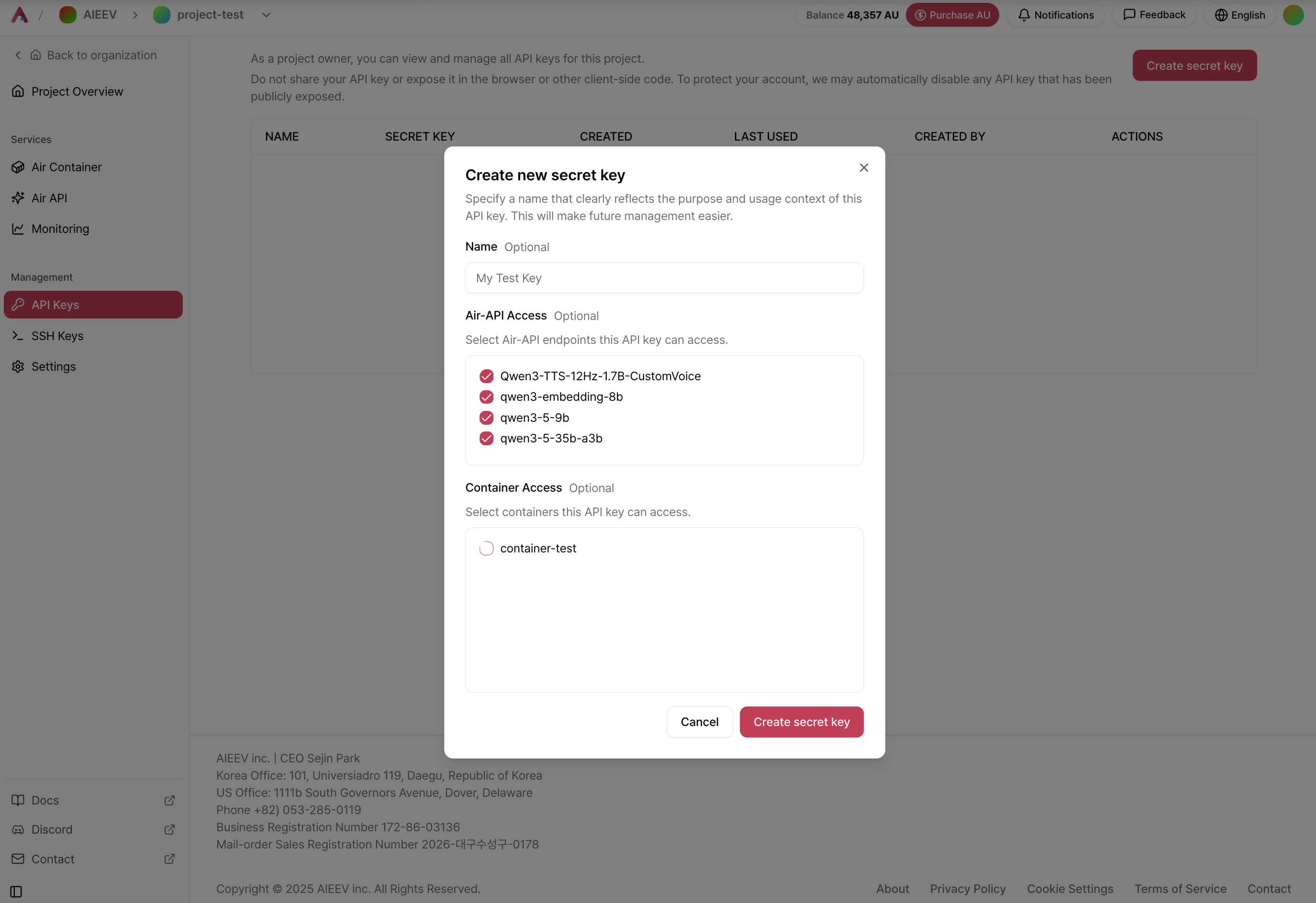 A secret key is displayed only once after it is created. Be sure to copy and store it in a secure location.
### 4. Test with a Code Sample
After generating your secret key, open the desired model card and click **View Code** in the upper-right corner. Replace `your-api-key` with your secret key and run the sample to verify your connection.
### 5. Test in Playground
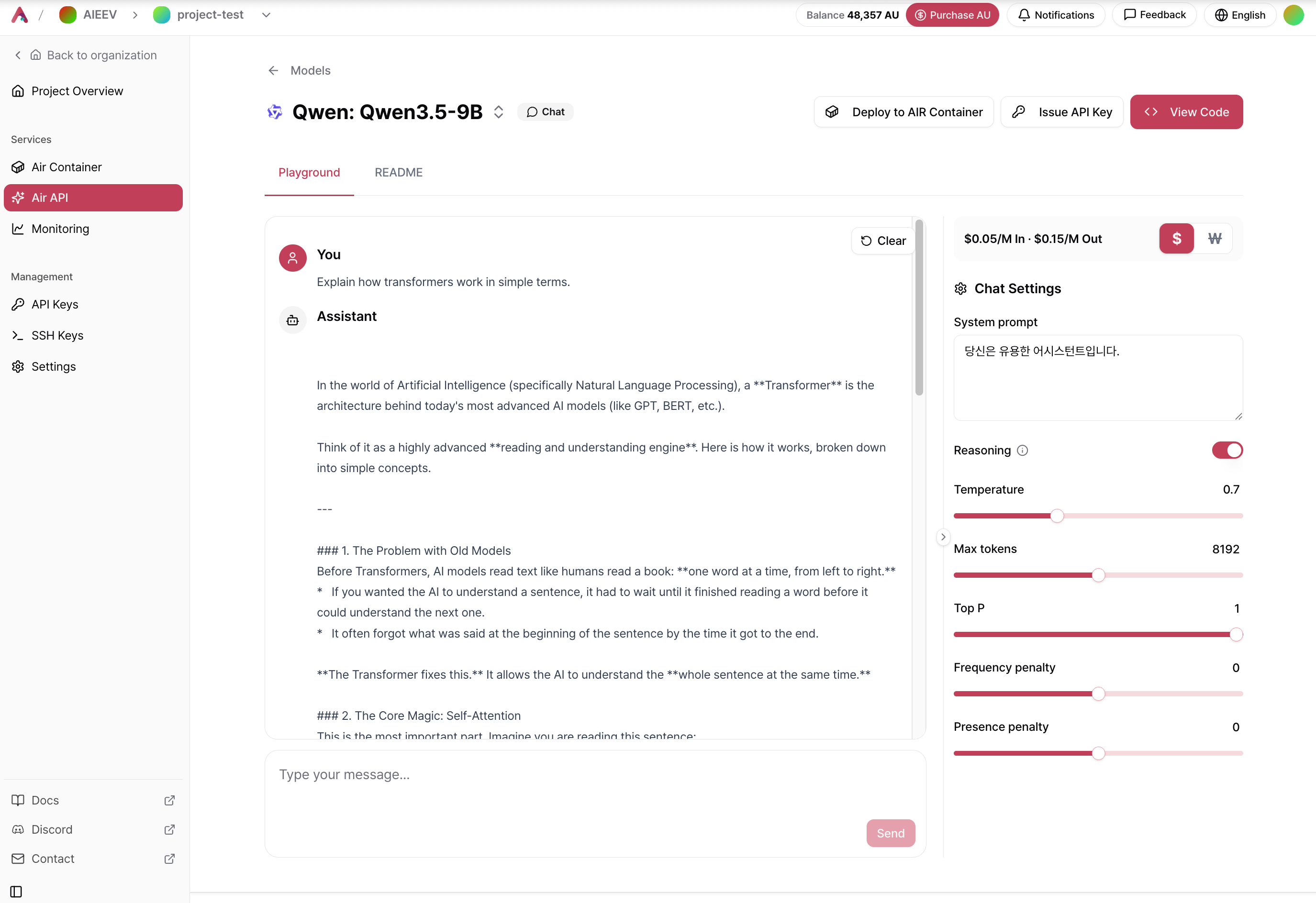
Open the Playground to interact with the model directly from the web interface. When you need dedicated resources, lower latency, or specific GPU configurations, you can seamlessly migrate the same workload to Air Container.
A secret key is displayed only once after it is created. Be sure to copy and store it in a secure location.
### 4. Test with a Code Sample
After generating your secret key, open the desired model card and click **View Code** in the upper-right corner. Replace `your-api-key` with your secret key and run the sample to verify your connection.
### 5. Test in Playground
Open the Playground to interact with the model directly from the web interface. When you need dedicated resources, lower latency, or specific GPU configurations, you can seamlessly migrate the same workload to Air Container.
 ## Related Documentation
Browse supported models and learn how to use the Playground.
Learn how to authenticate, call the API, and follow best practices.
Find solutions to common errors and troubleshooting tips.
## Related Documentation
Browse supported models and learn how to use the Playground.
Learn how to authenticate, call the API, and follow best practices.
Find solutions to common errors and troubleshooting tips.